How to set up shifts and working days
Updated September 17, 2026
Create a shift
- Open Time & Attendance → Shift Scheduling.
- Click Create Shift.
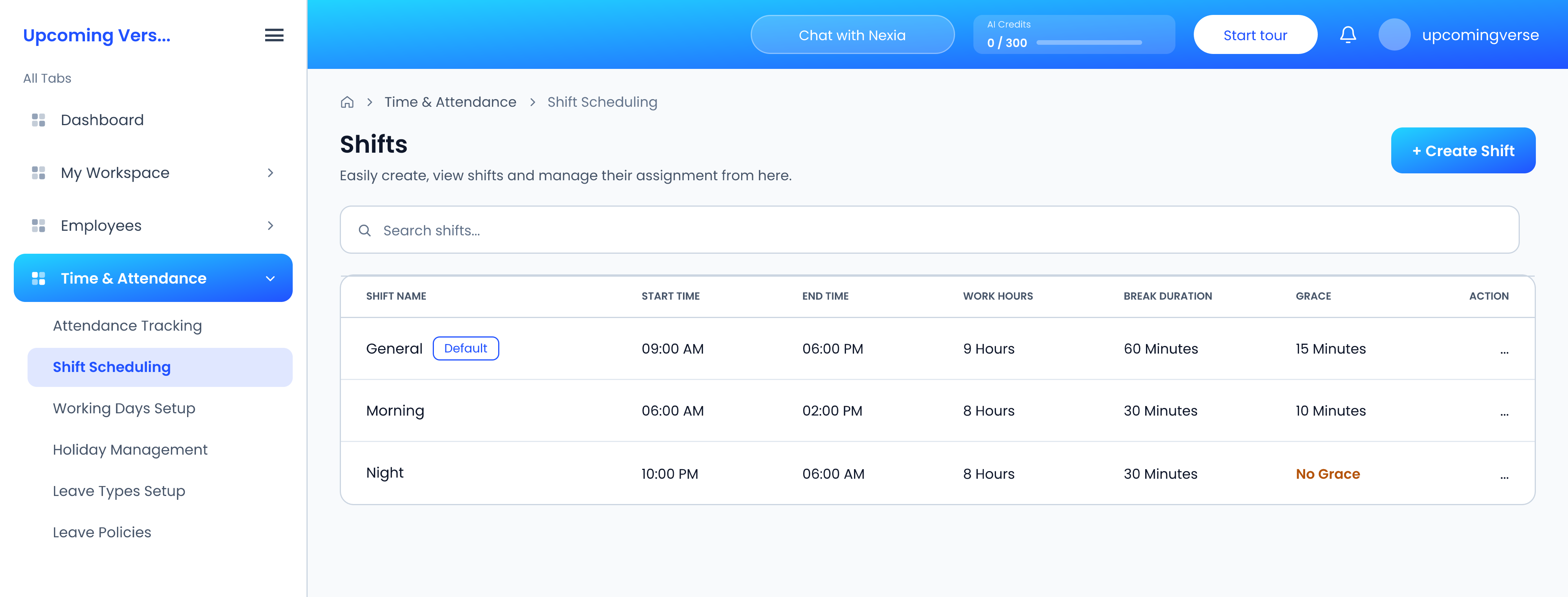
- Give it a name, then set its start and end time, break duration and grace period.
The Shifts list shows every shift with its start and end time, work hours, break duration and grace. One shift is marked Default.
The grace period decides who is late
A punch after the shift start but inside the grace period is not late. A shift showing No Grace marks anyone late from the first minute. If people are being marked late unexpectedly, check the grace on their shift before anything else.
Choose your working days
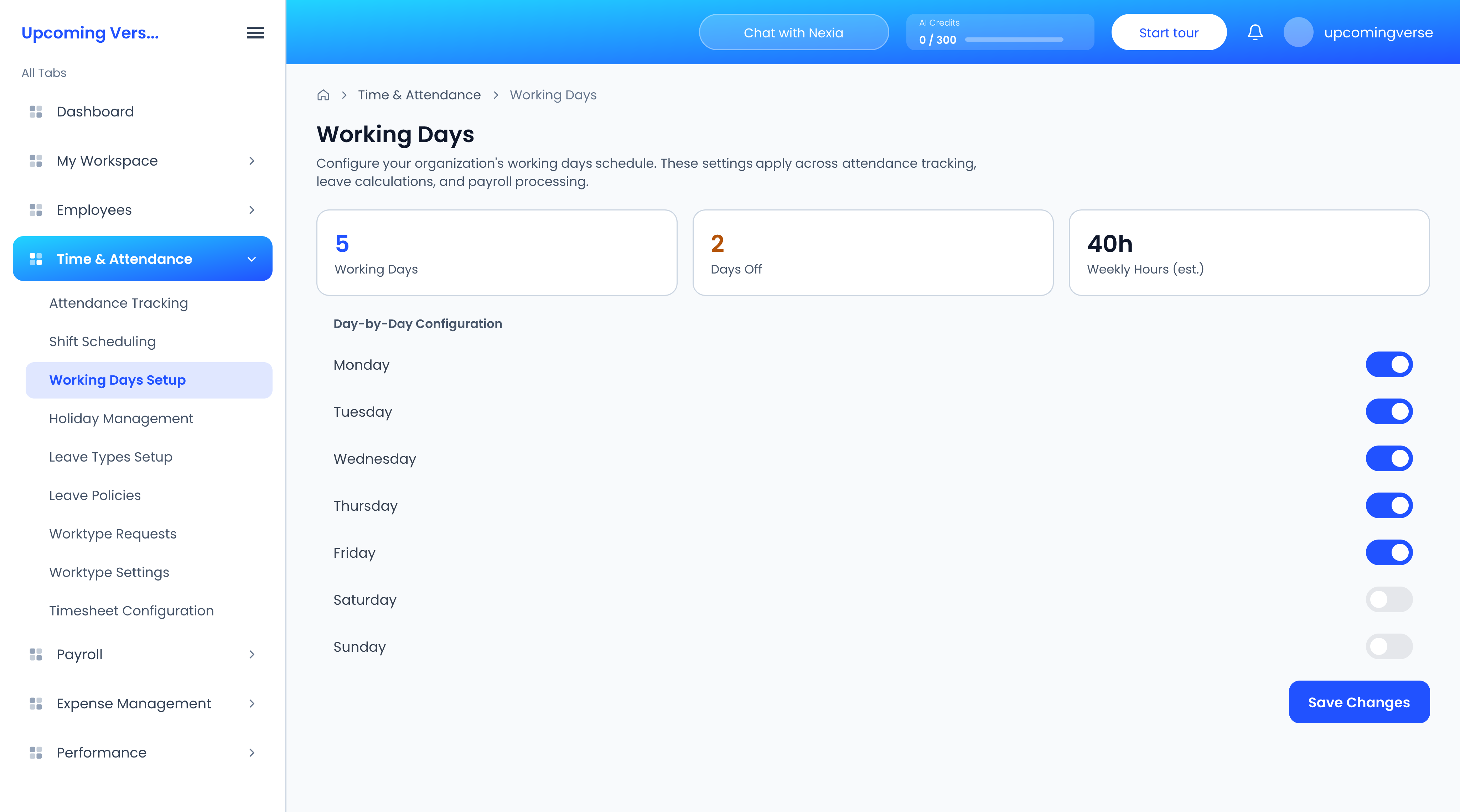
Open Working Days Setup and switch each day of the week on or off.
This setting feeds attendance and leave, so changing it changes how long a leave request is counted as. Settle it before people start booking leave, and think twice before changing it mid-year.
Fix a missed punch
Employees cannot correct their own attendance, so a missed punch always comes to an administrator.
- Open Attendance Tracking.
- Filter to the day or a custom date range, and search for the employee.
- Log the missing time manually.
Entries made this way are recorded as Manual, alongside Punch and Tracker, so it stays clear which hours were added after the fact.
Auto-clockout
If people forget to punch out, Timesheet Configuration can close their day off automatically at a set time. It is also where timesheet notifications are configured.