How to control what each person can see
Updated September 17, 2026
What someone sees in the sidebar is decided by two things at once, and both have to line up:
- The module has to be switched on for your organization.
- The person's role has to carry the matching permission.
If either is missing, the entry does not appear at all — it is not greyed out, it is simply absent. This is the single most common reason two colleagues describe different-looking screens.
Adjust a role
- Open Organization Settings → Roles & Permissions.
- Choose the role you want to change.
- Switch permissions on or off. They are grouped by module, so attendance permissions sit together, payroll permissions sit together, and so on.
- Save.
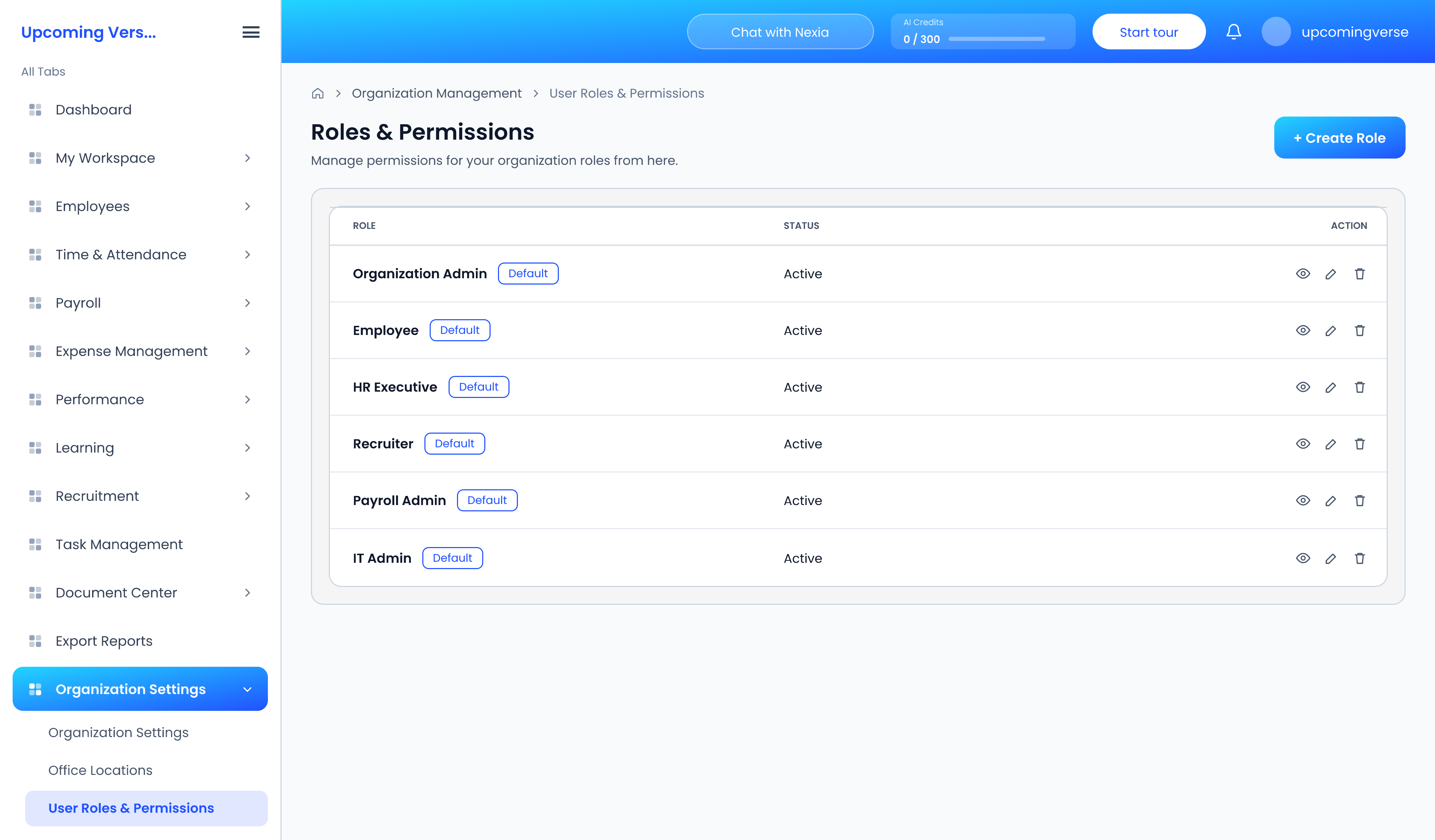
Permissions are finer-grained than you might expect
Many screens are split into several separate permissions. Viewing the course catalogue and enrolling in a course are two different permissions, for example, and so are approving leave and approving expenses.
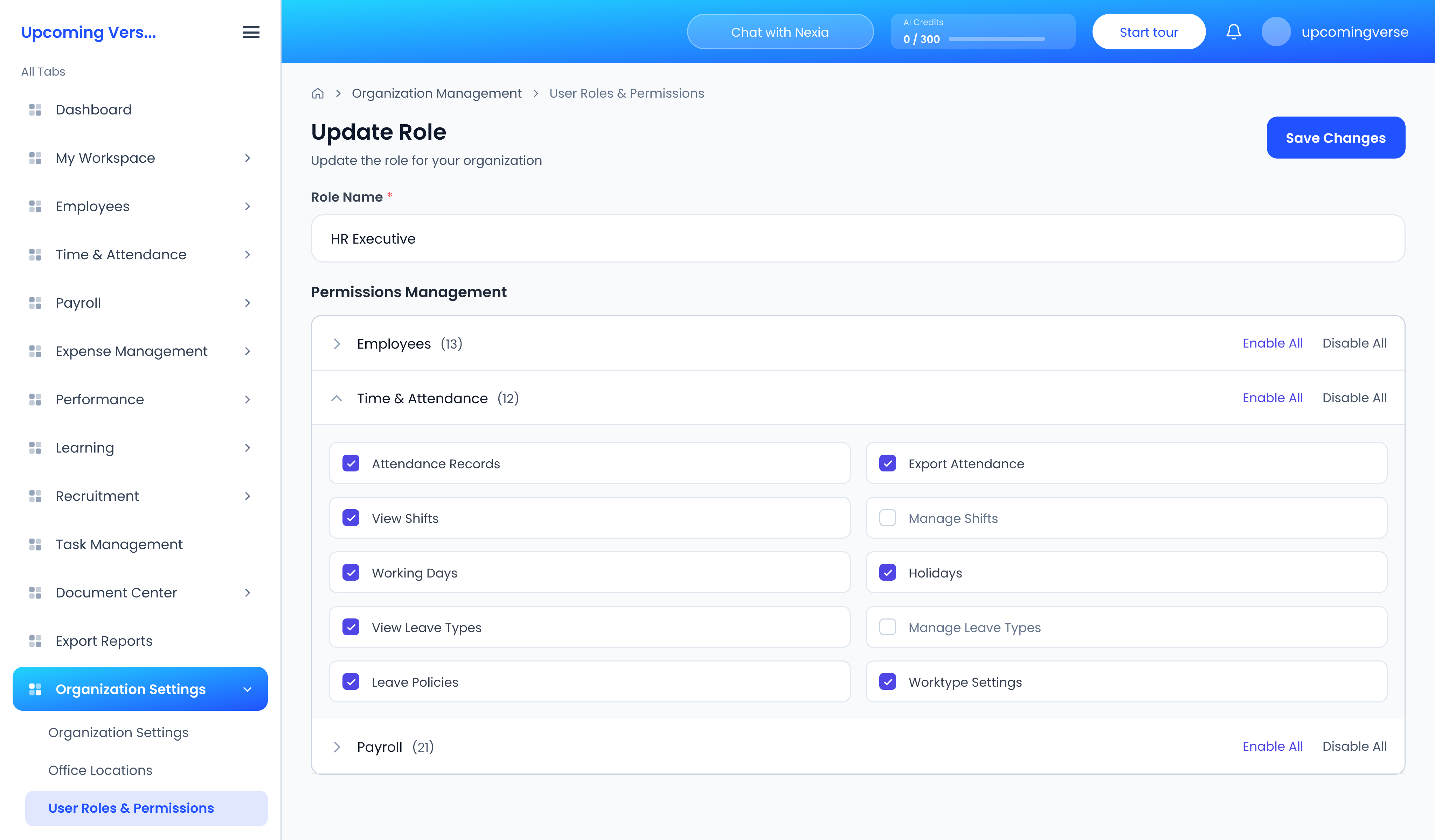
That granularity is useful, but it produces one recurring puzzle: a request that seems to have vanished. If an approver cannot find something waiting for them, it is usually sitting in an Approval Center category their role does not include.