Getting started
How to add your first employees
Updated September 17, 2026
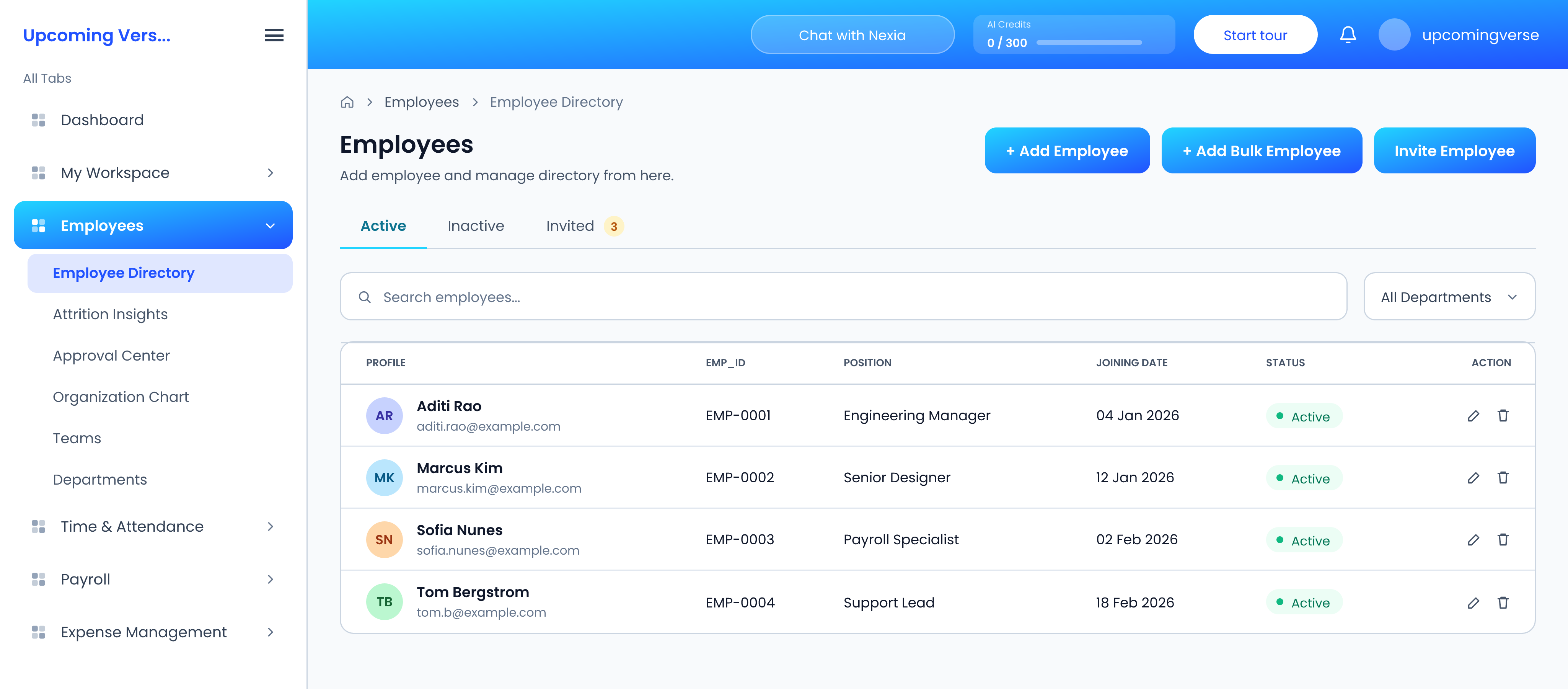
Everything else in the product hangs off your employee records, so this is the first thing to do after your organization is created. All three routes start in the same place: Employees → Employee Directory.
Pick the right method
- Add Employee — create one record by hand. Best for a handful of people, or a single new joiner later on.
- Bulk add — upload a CSV or Excel file and create many records at once. This is the fastest way to load an existing team.
- Invite — send an invitation and let each person fill in their own details. Less typing for you, and the personal data comes from the person it belongs to.
Add someone manually
- Open Employees → Employee Directory.
- Choose Add Employee.
- Fill in their details and save.
Invite people instead
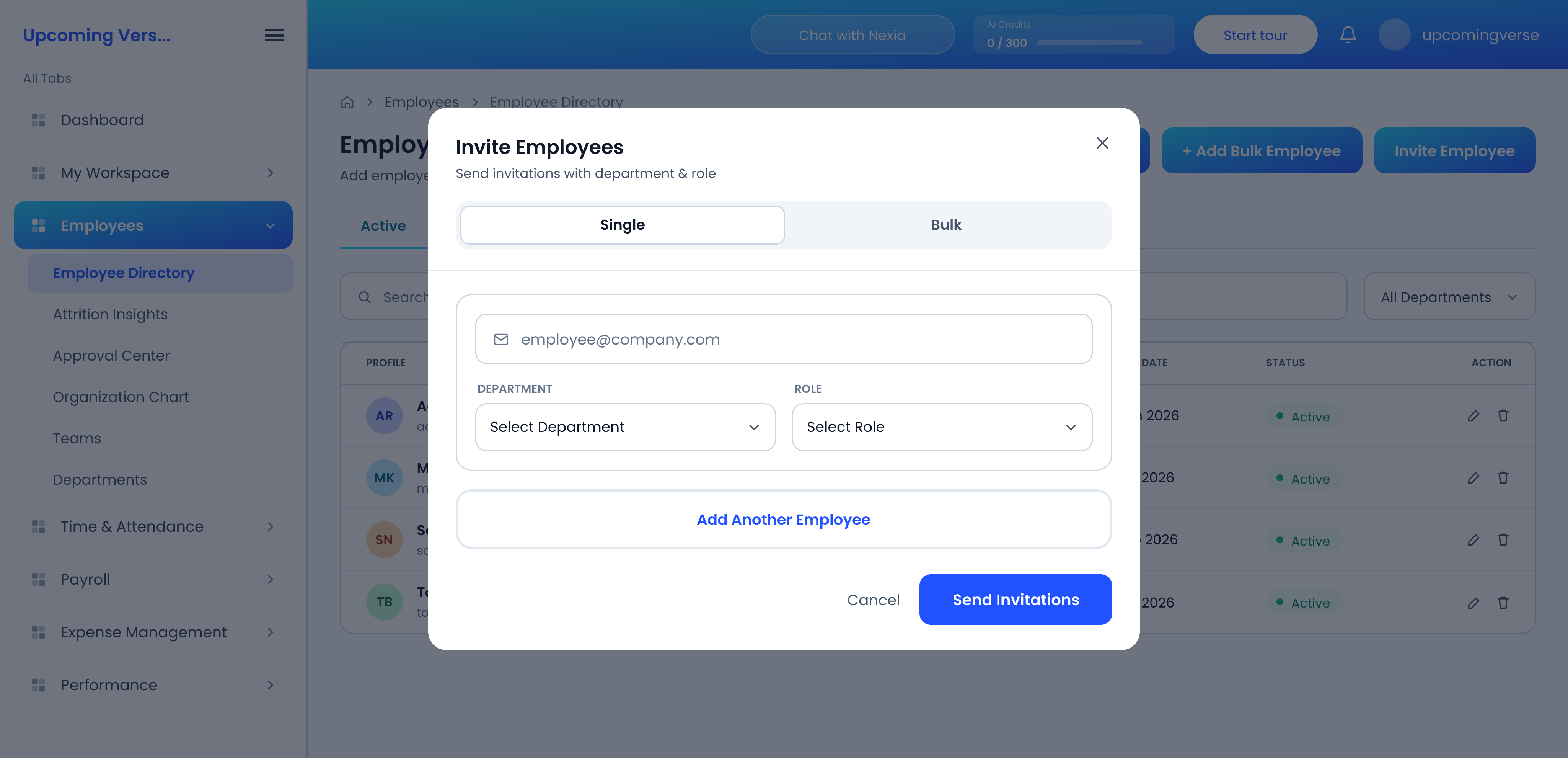
- From the same screen, choose Invite.
- Enter the email address and send it.
- The person completes their own profile when they accept.
"I added someone but I can't find them"
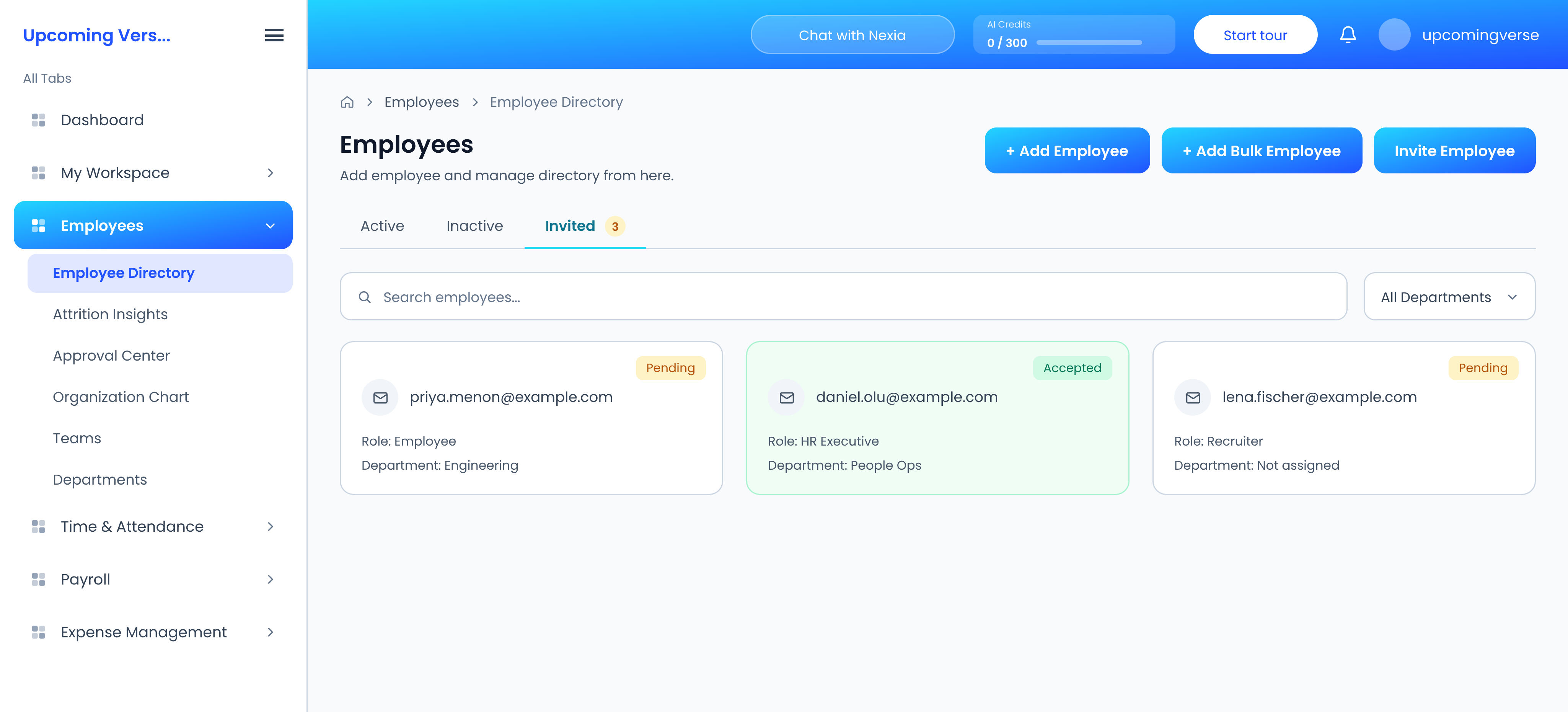
The directory has three tabs: Active, Inactive and Invited. Someone who was invited but has not signed up yet sits under Invited, not Active. That accounts for almost every case of a missing new starter.
Set a manager and a department
Worth doing while you are in the record. An employee with no manager or department set will not appear on the Organization Chart, and reporting lines are what the chart is built from.
Taggedemployeesonboardingdirectoryinvitebulk upload