How to manage employee and company documents
Updated September 17, 2026
Document Center holds two kinds of file: personal files kept against one employee, and company-wide documents such as policies.
Upload a file for an employee
- Open Document Center → Employee Documents.
- Search for the employee, or narrow the list by department.
- Click the employee to open their documents.
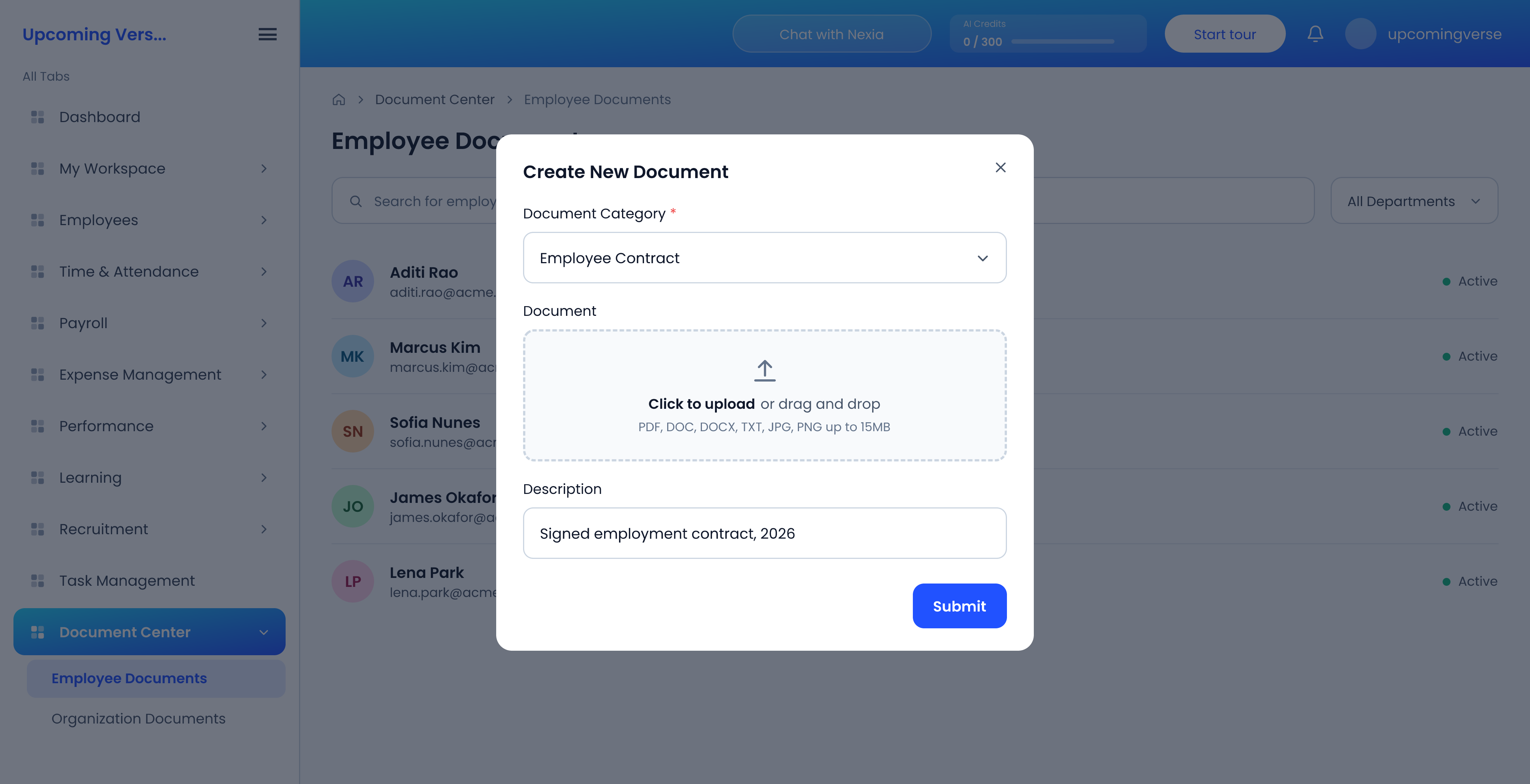
- Click New Document.
- Choose the Document Category, upload the file, add a description, and click Submit.
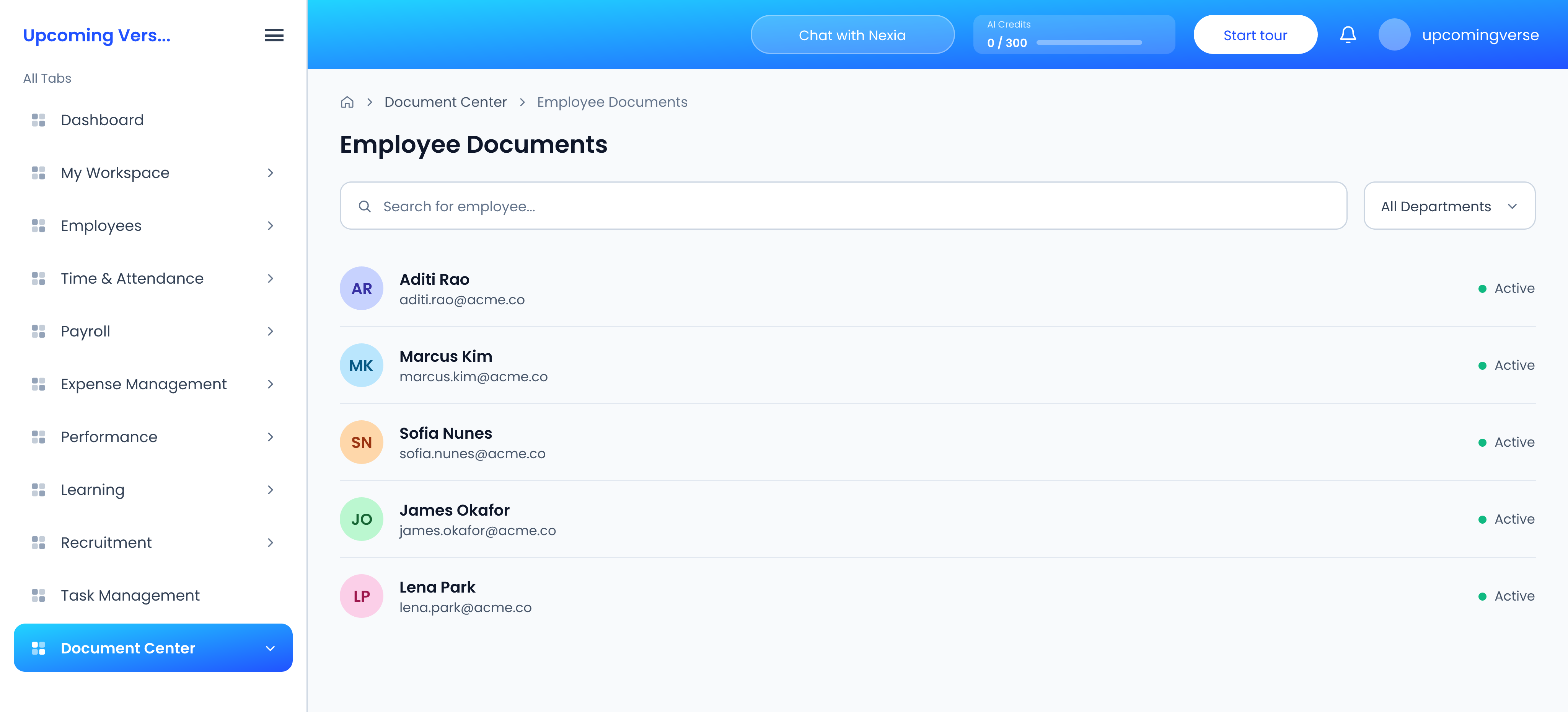
Categories are Resume, Cover Letter, Employee Contract, ID Document and Other. Files can be PDF, DOC, DOCX, TXT, JPG or PNG, up to 15MB. Once uploaded, each one can be previewed, downloaded or deleted.
You cannot find where to upload
The upload button lives inside an employee's documents, not on the list of employees. Pick someone first.
Publish a company document
- Open Document Center → Organization Documents.
- Create the document and upload the file.
- Set who can see it: everyone, or specific groups.
Types are Policy, Agreement, Procedure, Contract, Report and Other.
"I can't see the policy"
Visibility is set on each document, so a document existing does not mean everyone can see it. Check who it was shared with.
What employees see
Employees find their own files under My Workspace → My Profile & Records. They can never see another employee's documents from there.
Delete with care
Deleting a document cannot be undone. Download a copy first if there is any chance you will need it.