How to export reports
Updated September 17, 2026
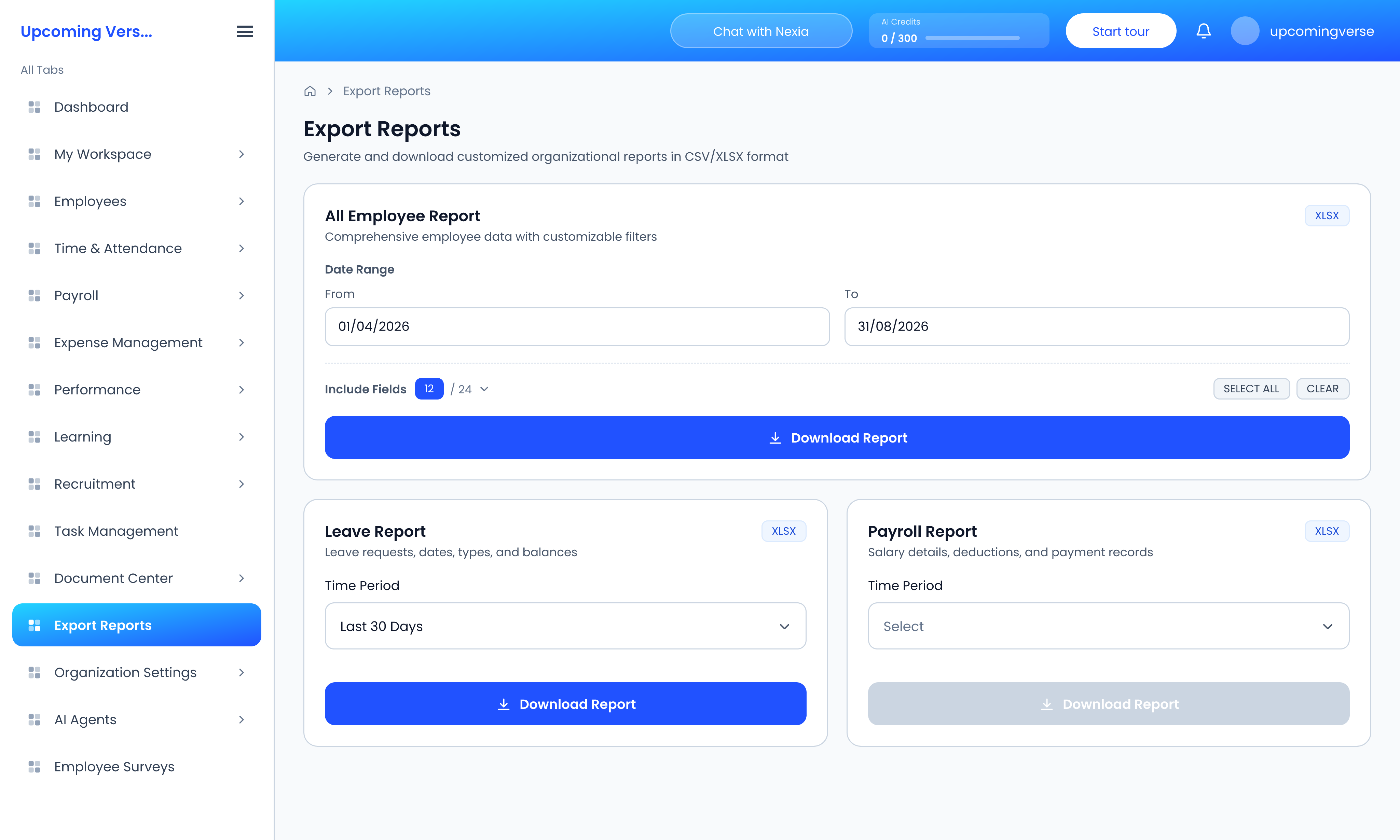
- Open Export Reports.
- Find the card for the report you want.
- Set its options. Every report needs a period — a Date Range or a Time Period — and some let you pick employees or the fields to include.
- Click Download Report.
What you can export
- All Employee Report — employee data, with Include Fields to choose exactly which columns you get.
- Timesheet Report — hours worked and attendance data.
- Expense Report — claims, amounts, categories and approval status.
- Leave Report — leave requests, dates, types and balances.
- Payroll Report — salary details, deductions and payment records.
Download Report is greyed out
No period has been chosen yet. Pick the dates first.
A report is missing from the page
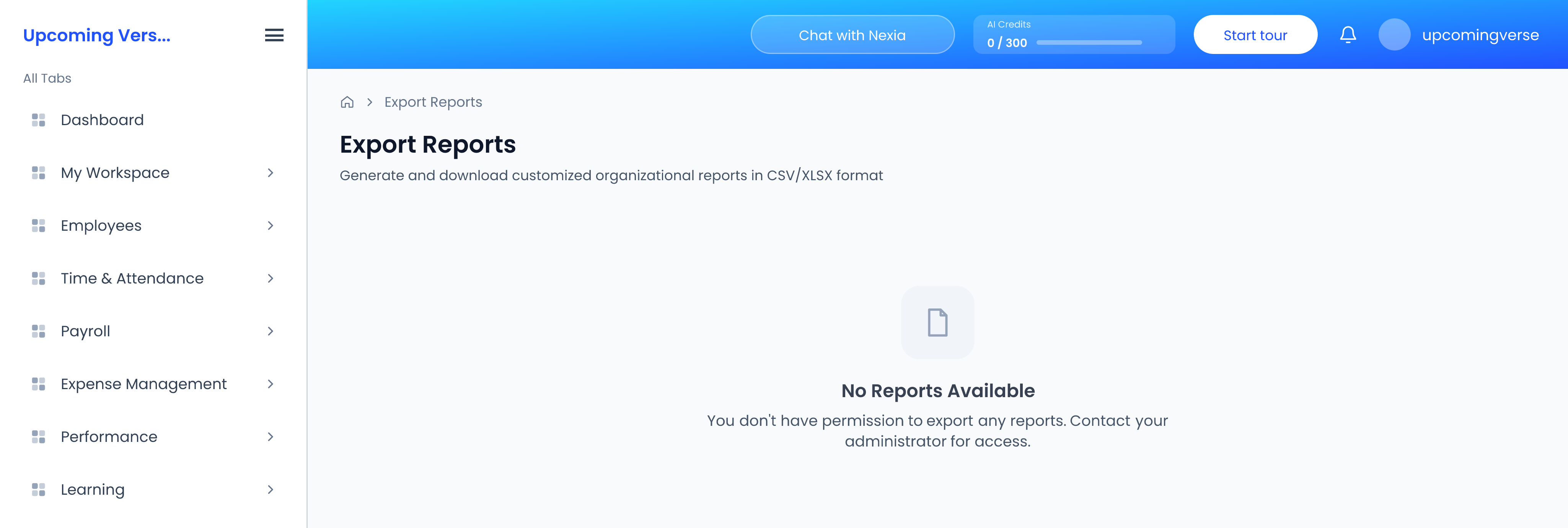
Each report is a separate permission, and each depends on its module being switched on. If you see No Reports Available, the message underneath says which of the two it is.
The data is out of date
A report is a snapshot of the data at the moment you download it. Anything added afterwards needs a fresh export — and a payroll run that had not reached Paid when you exported is not final, so the figures may not match the payslips.
The file is empty
Check the period and the employees selected. A range with no records produces an empty file.
Other places to export from
Attendance can also be downloaded straight from Attendance Tracking, and employees can download their own timesheets from My Workspace → My Timesheets where they have permission.