Time & attendance
How to request remote or office work
Updated September 17, 2026
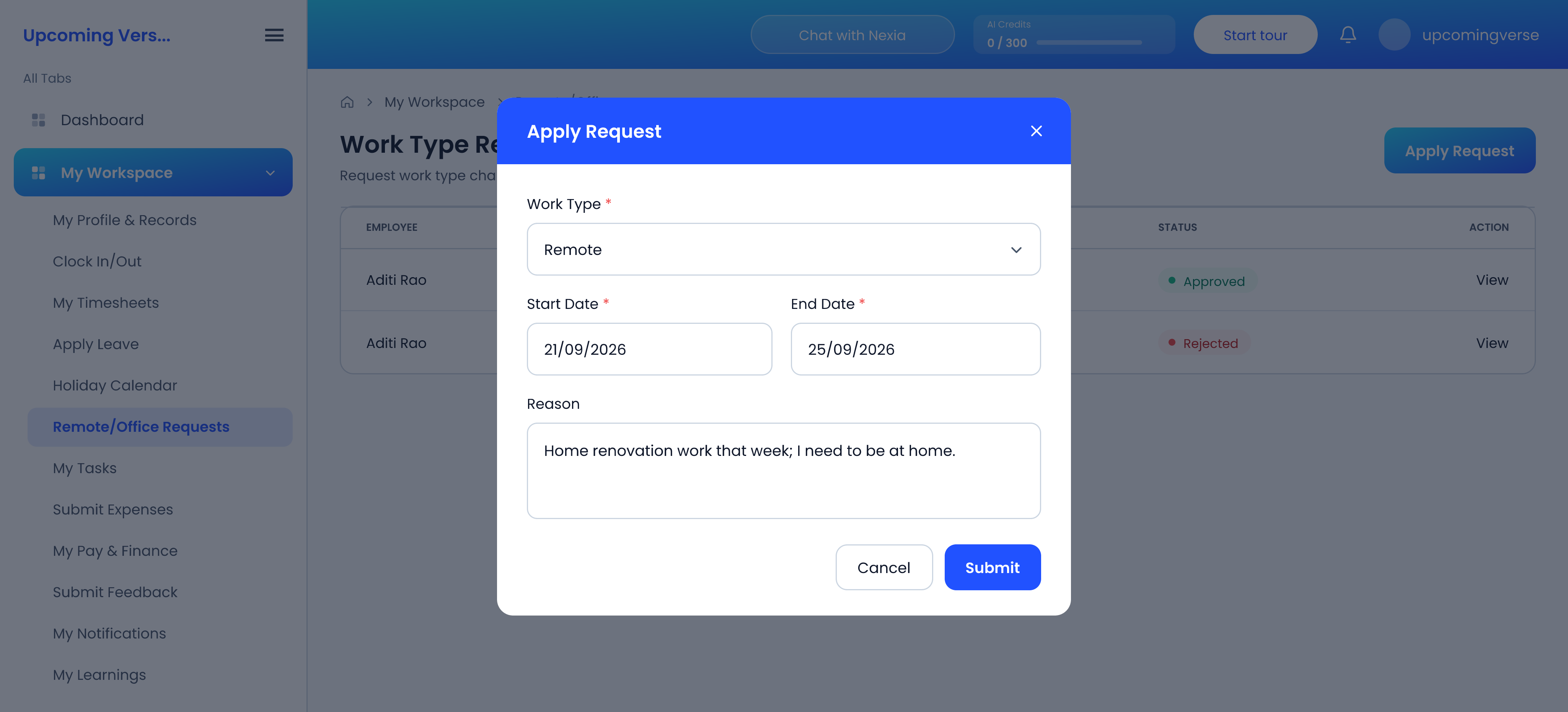
- Open My Workspace → Remote/Office Requests.
- Click Apply Request.
- Choose the work type: Remote or Onsite.
- Enter the start date and end date.
- Briefly explain the reason, and submit. It goes to whoever approves work-type requests in your organization.
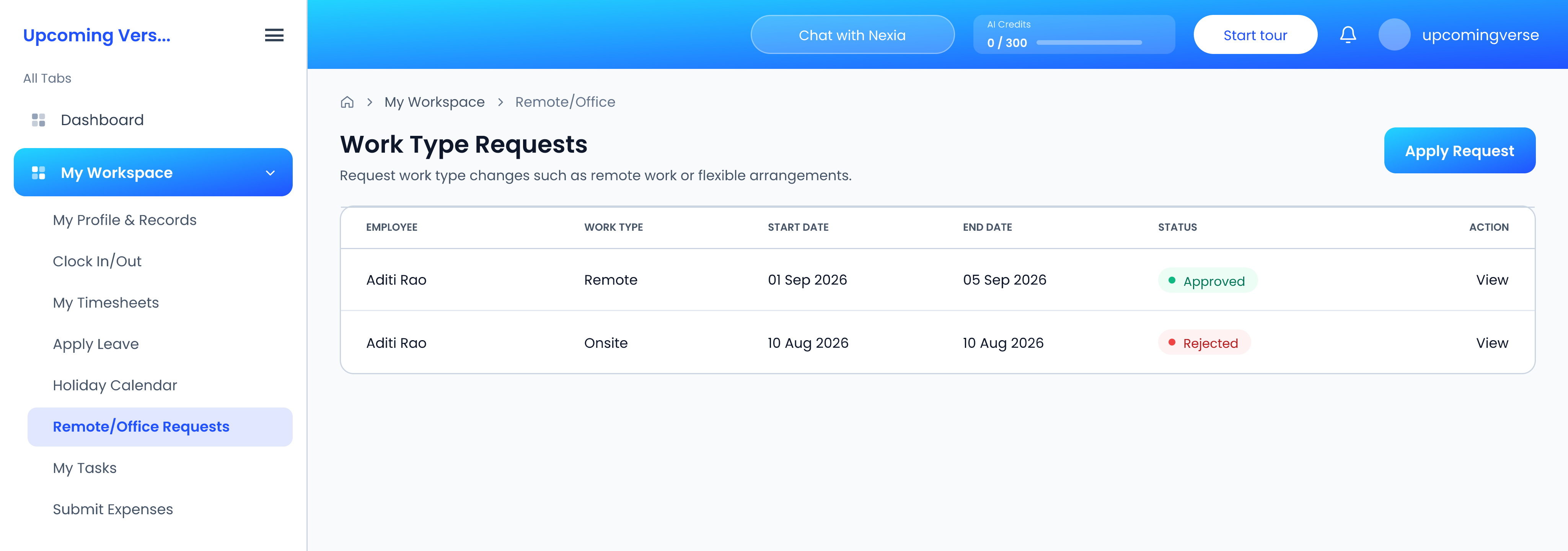
Track and change your requests
Your requests are listed on the same screen with their dates and status. You can edit or delete a request while it is still waiting. Once it has been approved or rejected it is fixed.
Where it shows up once approved
An approved remote request covering today puts you on the Remote today panel of the dashboard, so colleagues can see where you are working. A request that is still waiting does not.
For approvers
Work-type requests arrive in Employees → Approval Center, on the Work Type tab. Administrators can also review them under Time & Attendance → Worktype Requests, and configure the options under Worktype Settings.
Taggedremote workwork from homeonsitework type