Time & attendance
How to adjust an employee's leave balance
Updated September 17, 2026
When someone's balance is wrong and their leave history does not explain it, correct the balance straight from their employee record. No leave request is involved.
- Open Employees → Employee Directory and open the employee's record.
- Go to their leave balances and find Manage balance.
- Click Credit to add days, or Debit to take days off.
- Enter the days, choose the Leave type, and add a Reason / comment.
- Click Credit days or Debit days.
Days can be adjusted in half-day steps.
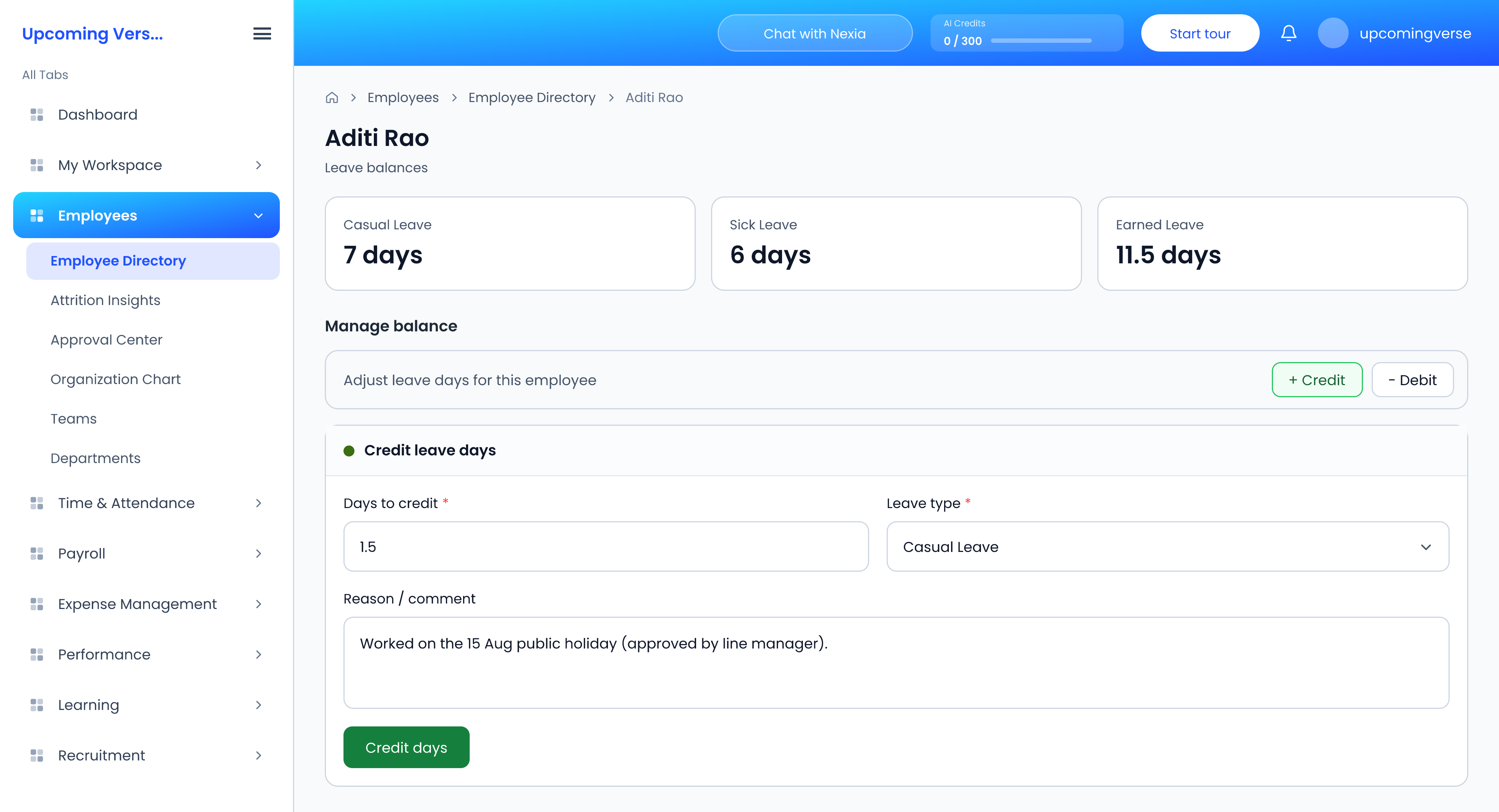
Always fill in the reason
The comment is optional, but it is the only record of why the balance moved. The adjustment is written to the employee's leave balance log with the days and your comment, and the employee is notified of the change and their new balance. Write it for whoever reads the log in a year's time.
Two reasons an adjustment is refused
- The leave type is not assigned to them. There is no balance to adjust. Assign the type first, from Leave type assignment just below.
- The debit is larger than what remains. A balance cannot go below zero, and an oversized debit is refused outright rather than applied in part.
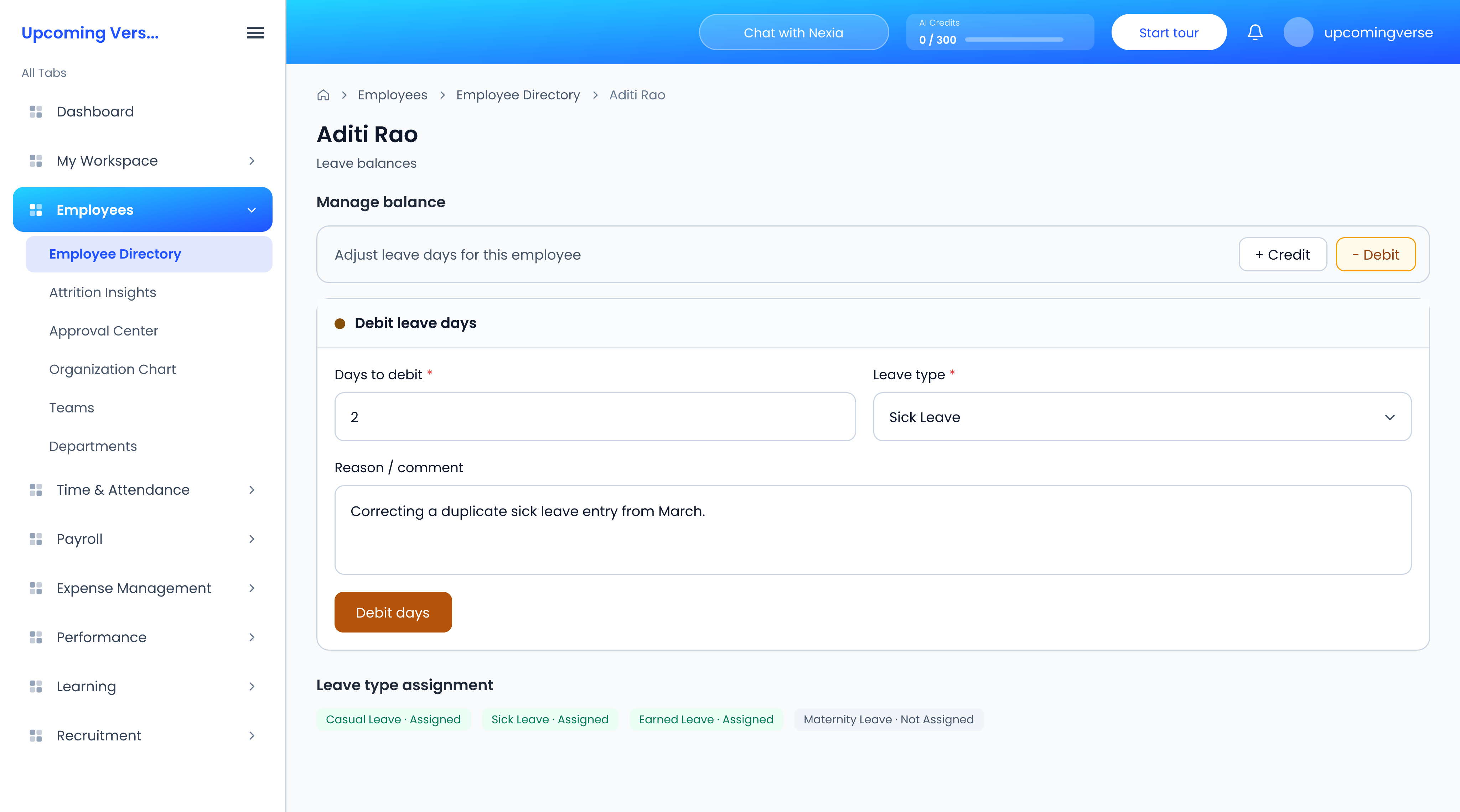
Employees cannot do this themselves
Balance adjustments are an administrator correction. An employee who thinks their balance is wrong should check Apply Leave for how their requests were counted, then ask HR.
Taggedleave balancecreditdebitadjustmentadmin