How to set up salary components and structures
Updated September 17, 2026
Pay is built in three layers. Set them up in this order.
1. Salary components
Components are the individual lines on a payslip — Basic Pay, HRA or PF, for example. They live under Payroll → Salary Components, which lists each one with its abbreviation, type, calculation, whether it is taxed, and its status.
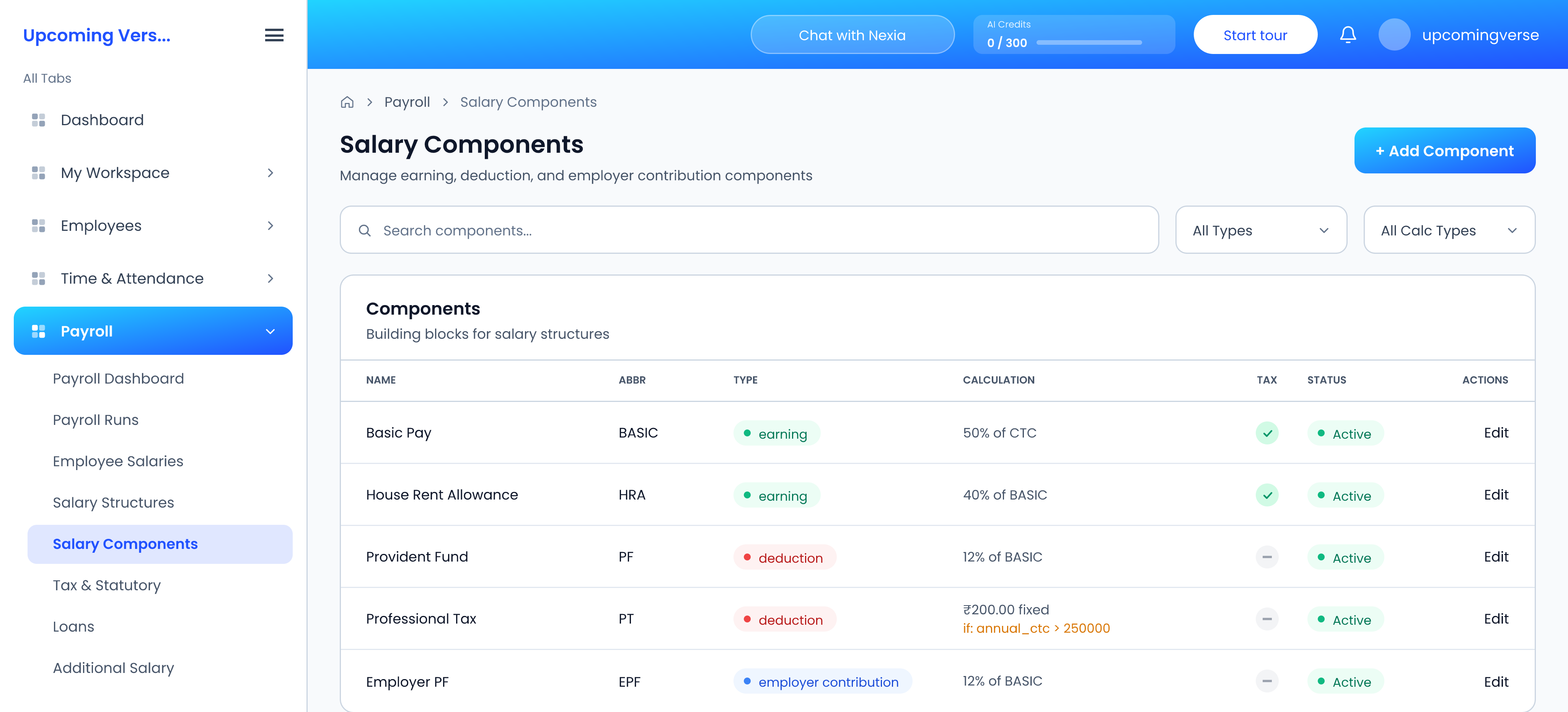
- Click Add Component.
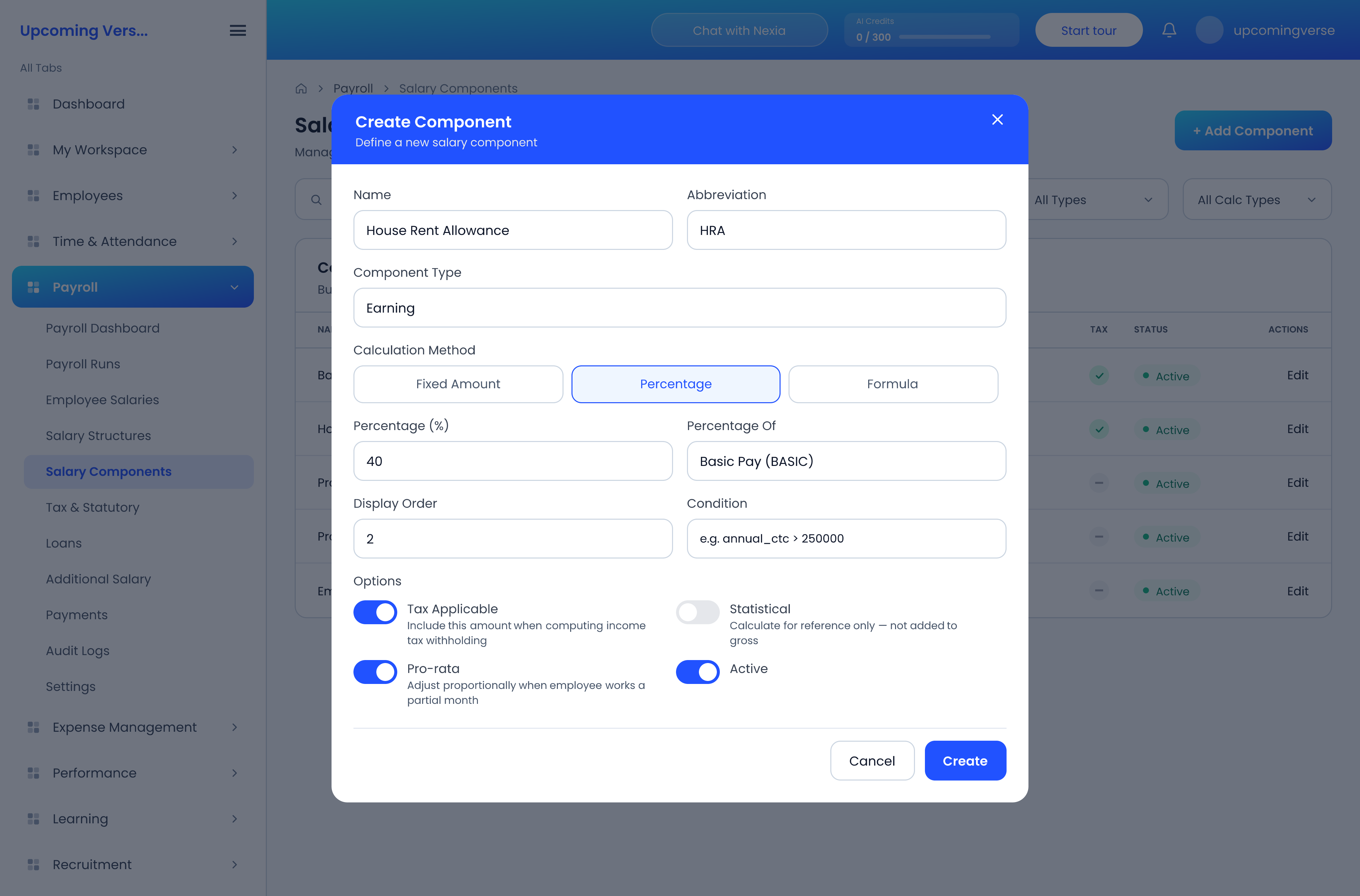
- Enter a Name and a short Abbreviation, such as
BASICorHRA. Other components and formulas refer to it by that abbreviation. - Choose the Component Type: Earning, Deduction or Employer Contribution.
- Choose the Calculation Method:
- Fixed Amount — the same monthly amount every month.
- Percentage — a percentage of another value, such as 40% of Basic Pay.
- Formula — an expression such as
period_ctc - BASIC - HRA. The dialog includes a formula reference guide.
- Optionally set a Display Order and a Condition — for example
annual_ctc > 250000— so the component only applies when the condition is true. - Set the options: Tax Applicable, Statistical (calculated for reference but not added to gross), Pro-rata (adjusted for a partial month) and Active.
- Click Create.
A component that is used in a salary structure cannot be deleted.
2. Salary structures
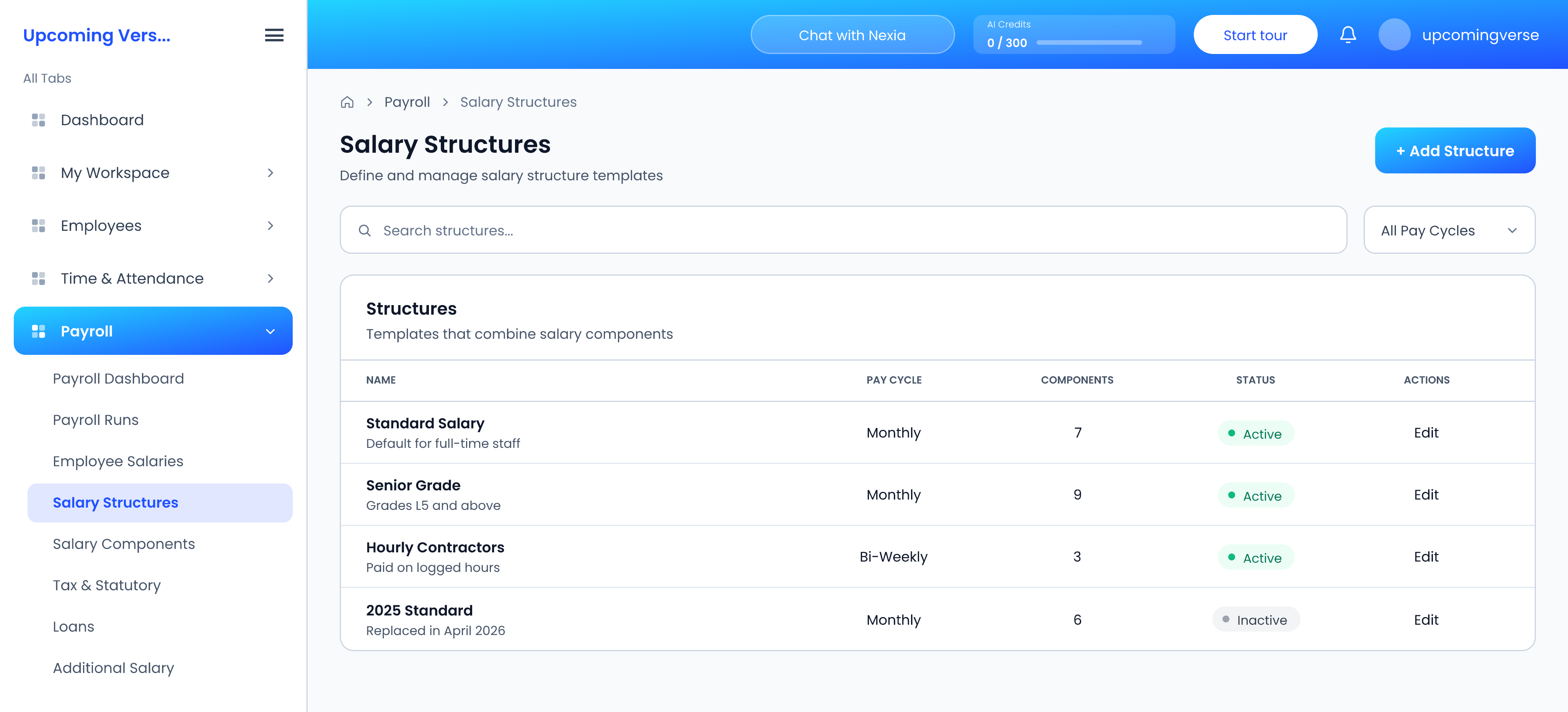
A structure combines components into a reusable template — one per grade, for instance.
- Open Payroll → Salary Structures and click Add Structure.
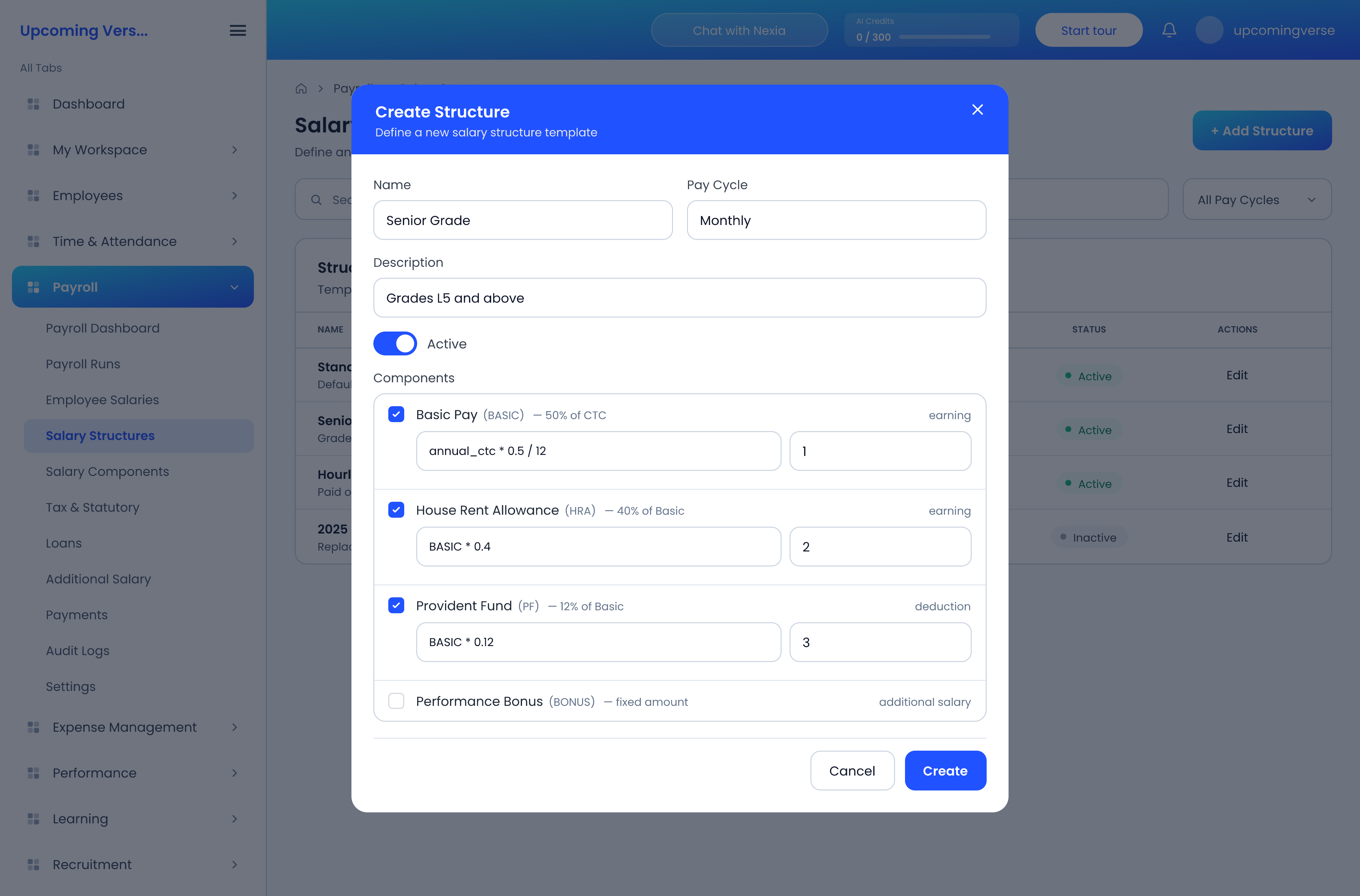
- Give it a Name and choose its Pay Cycle: Monthly, Weekly, Bi-Weekly or Semi-Monthly.
- Add its Components. For each one you can set an order, and override its formula or condition for this structure only.
- Leave it Active and save.
Order matters. Components can be calculated from one another, so a component that depends on Basic Pay has to come after it.
If the component list says No components available, go back to step 1 — a structure can only be built from components that already exist.
3. Assign a structure to each employee
- Open Employee Salaries.
- Find the employee and use the assign action.
- To change pay later, use the revise action instead.
A revision is recorded alongside the old salary rather than overwriting it, so the history of someone's pay is never lost.
Someone was left out of a payroll run
An employee with no salary structure assigned is not included when a run is generated. If a run's employee count is lower than you expect, check Employee Salaries first.
Change a structure carefully
Editing a structure or a component changes pay for everyone on it. To fix one person's pay, revise that person's salary instead.