How to process a full and final settlement
Updated September 17, 2026
A leaver's exit and their final pay are handled together, from one Exit Process page.
1. Start the exit
- Open Employees → Employee Directory.
- On the employee's row, use Initiate Exit.
The employee moves to In Notice, and the same row now offers View Offboarding, which opens their Exit Process page.
2. Work through the offboarding checklist
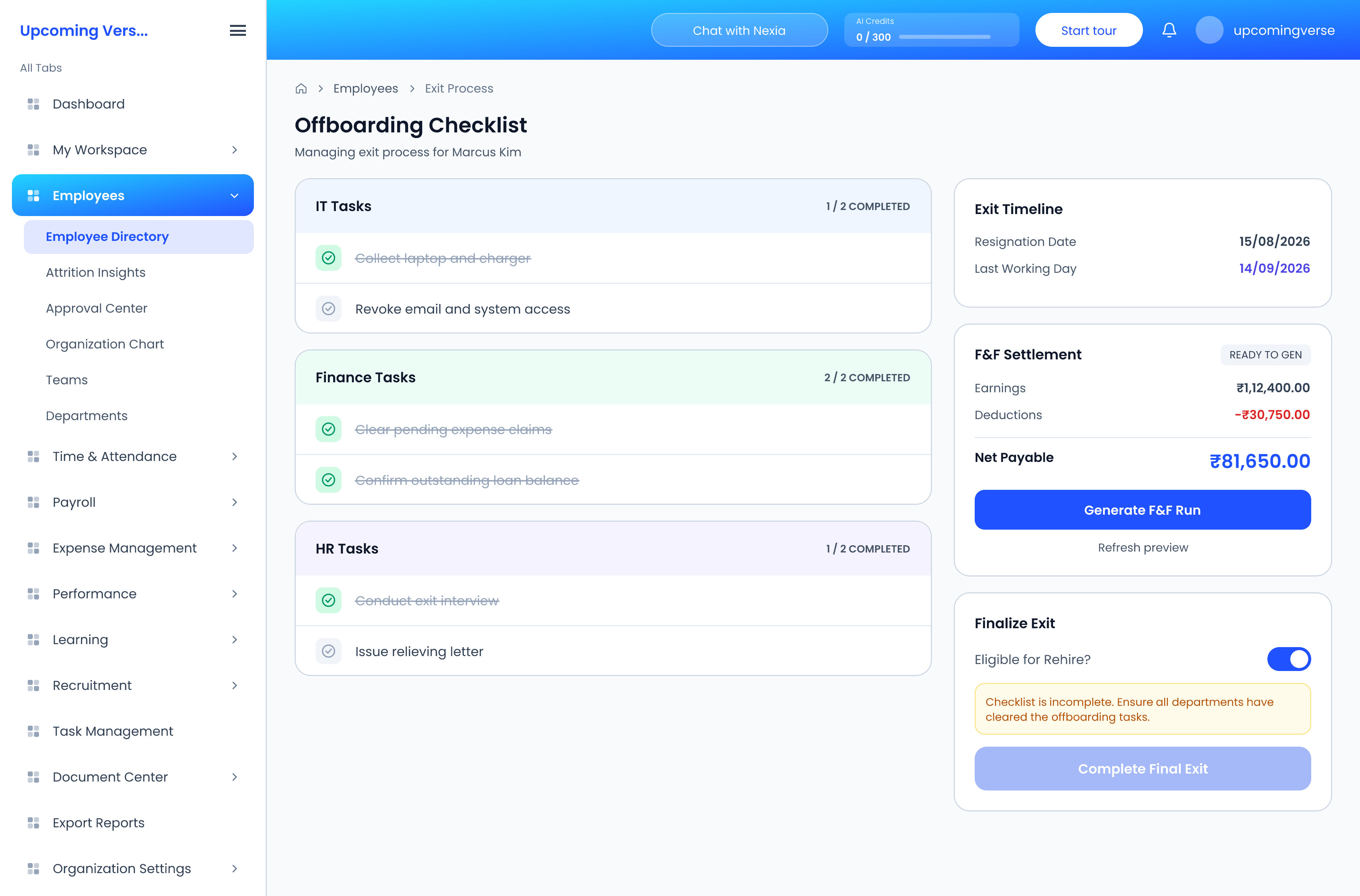
The Offboarding Checklist groups tasks by department, each showing how many are completed. Tick tasks off as each department clears them. The Exit Timeline alongside shows the resignation date and Last Working Day.
3. Generate the F&F run
The F&F Settlement card previews the final figures — Earnings, Deductions and Net Payable — once a last working day is set.
- If Net Payable is positive, click Generate F&F Run.
- If it is negative, the card reads F&F Recoverable: the employee owes money back. The button becomes Route for HR approval.
Use Refresh preview to recalculate if anything about the employee has changed since the page loaded.
4. Pay it
Click Open in Payroll to take the run through the usual steps — review, approve and mark Paid. Once it is paid, the card offers View F&F Slip, and the employee's payslip list shows it as an F&F Settlement.
5. Complete the exit
Under Finalize Exit, set Eligible for Rehire? and click Complete Final Exit. The button stays disabled until the checklist is complete and the F&F run has been paid, and a note above it says which is still outstanding.
Settlement rules
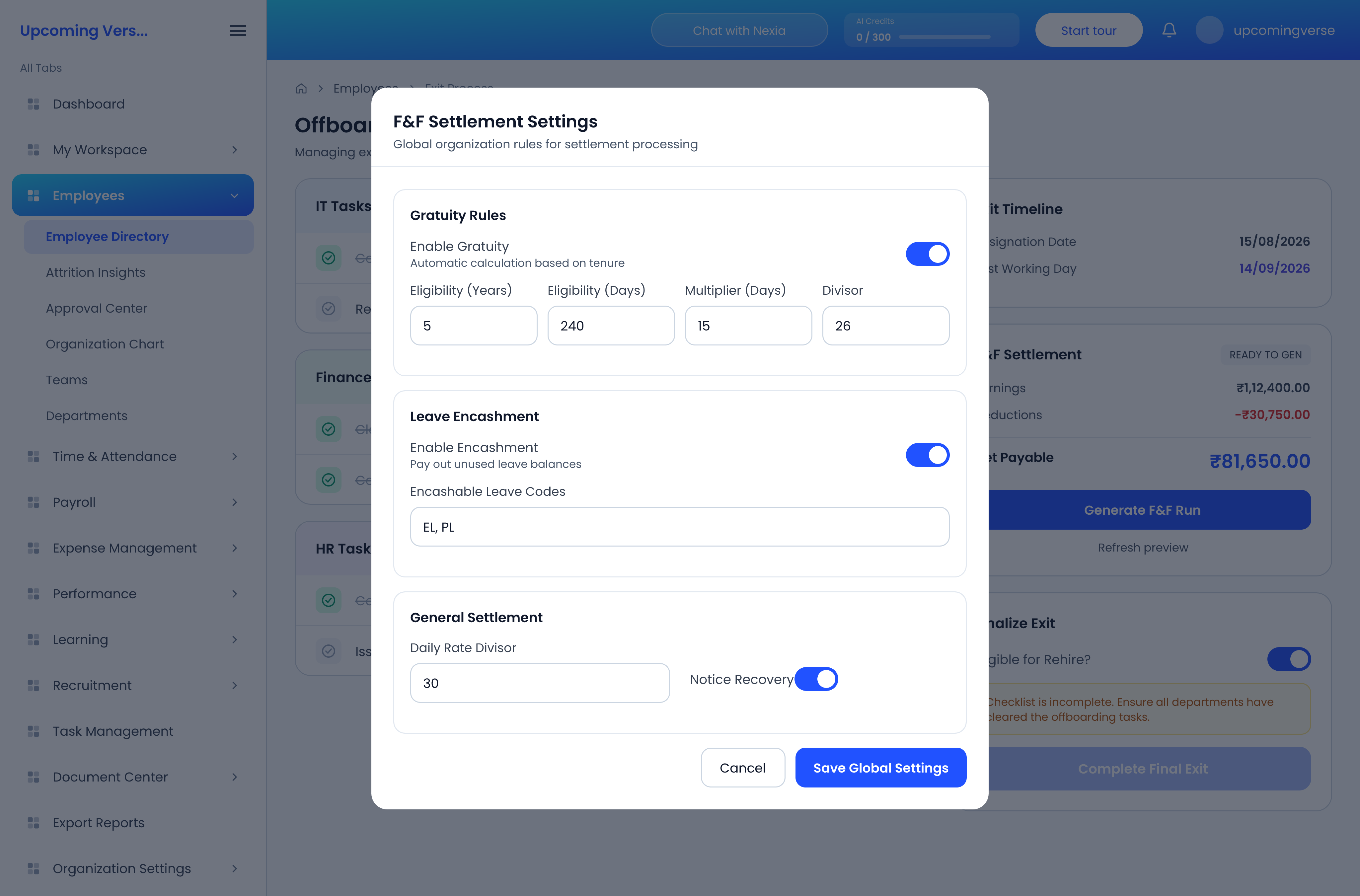
The settings icon on the F&F card opens F&F Settlement Settings: gratuity eligibility, leave encashment and which leave types can be encashed, the daily rate divisor and notice recovery. These are organization-wide, so change them before settling anyone rather than to fix one settlement.