How to run payroll
Updated September 17, 2026
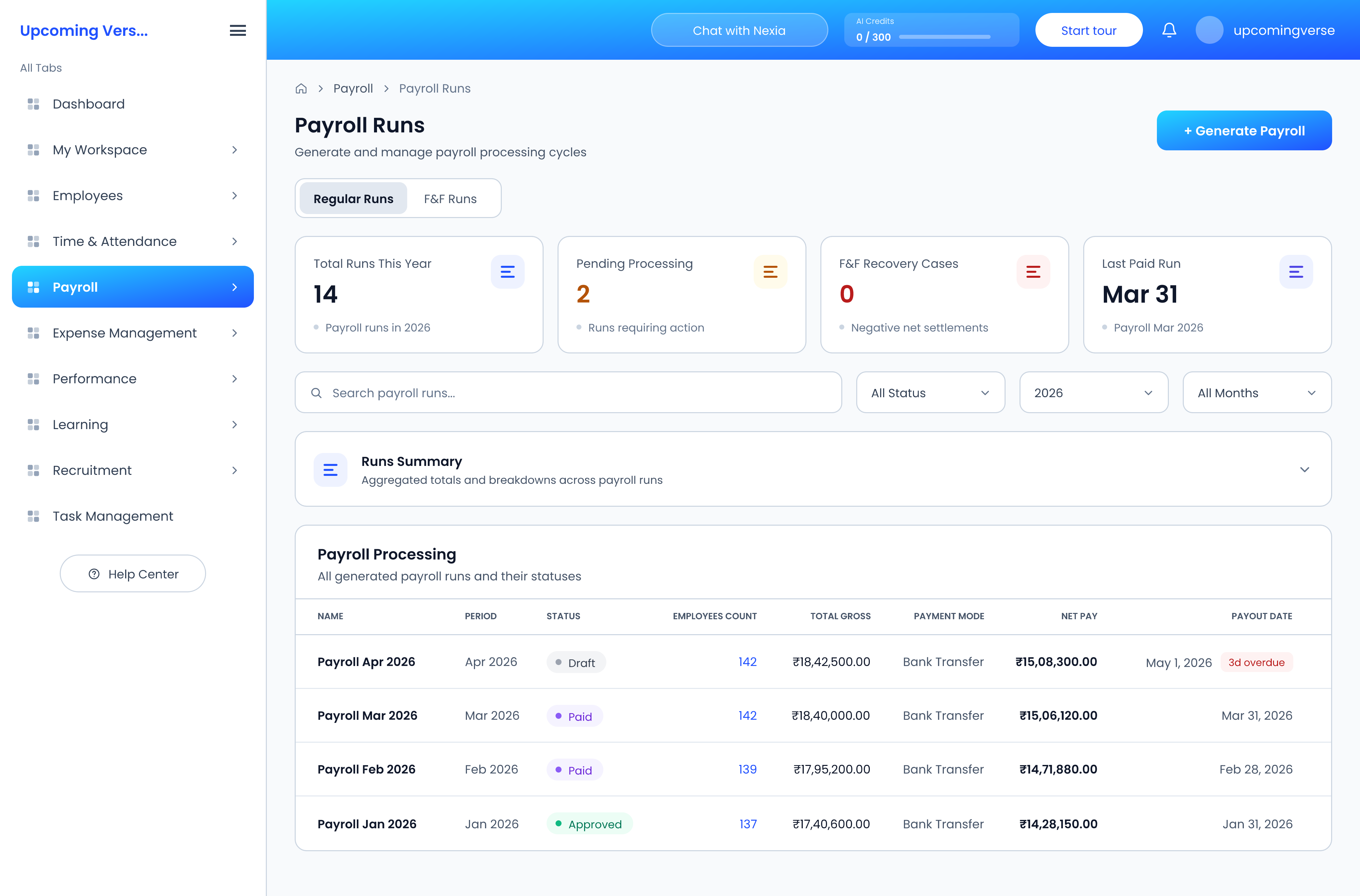
Payroll runs live under Payroll → Payroll Runs, and need a payroll permission — most people will not see these screens at all.
Before you start
Two things need to be in place, or the run will come out short:
- Every employee who should be paid has a salary structure assigned.
- Attendance and leave for the period are finalised, since both feed the deductions.
The statuses, in order
- Draft — generated, still editable, nobody has reviewed it.
- Submitted — sent for review.
- Approved — signed off, ready to pay.
- Paid — marked as paid, with a payment mode and payout date recorded.
- Closed — finalised, no further changes.
Cancelled sits outside that sequence. A cancelled run is out of the cycle and is not paid.
Payslips appear at "Paid"
This is the step people ask about most. Employees cannot see a payslip for the month until the run is marked as Paid. If your team is asking where their payslips are, check the run's status first.
Two types of run
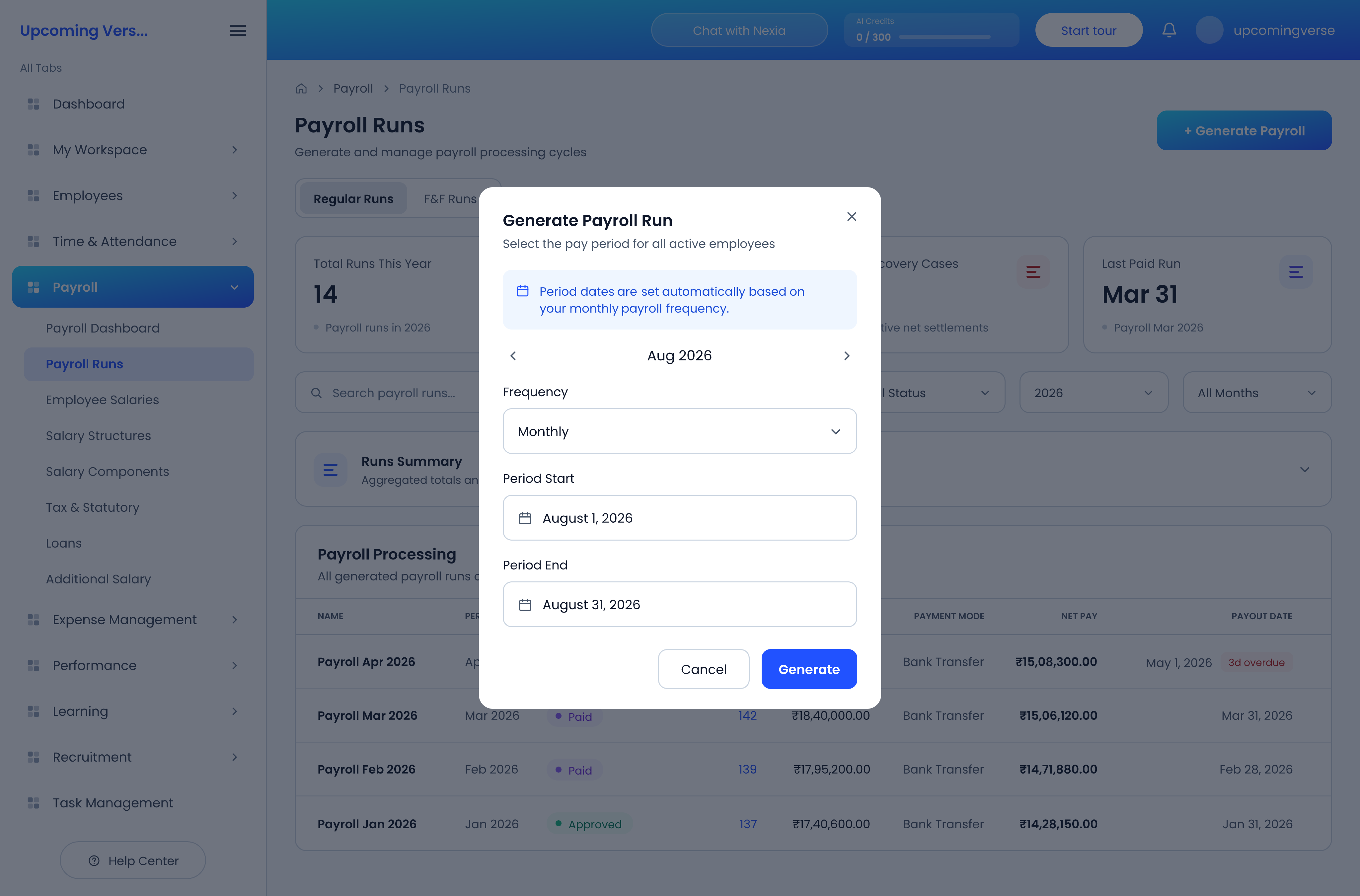
- Regular — the normal monthly cycle.
- Full & Final — the settlement for someone leaving.
Reading the table
Each row is one run. Employees Count is how many people the run covers — if it is lower than you expect, someone is missing a salary structure. Total Gross is before deductions and Net Pay is what actually leaves the account. A red badge next to the payout date means the date has passed while the run is still unpaid.
Approving and paying
Open the run to review it line by line, then move it from Draft to Approved. Approved runs can be paid out and marked Paid, which stamps the payout date and makes the payslips visible to employees in My Workspace.
Expand Runs Summary at any time for aggregated totals across runs, broken down by status, run type and salary component.
If a figure looks wrong
Audit Logs, under Payroll, records the history of what changed on a run and who changed it.