Payroll
How to view and download your payslip
Updated September 17, 2026
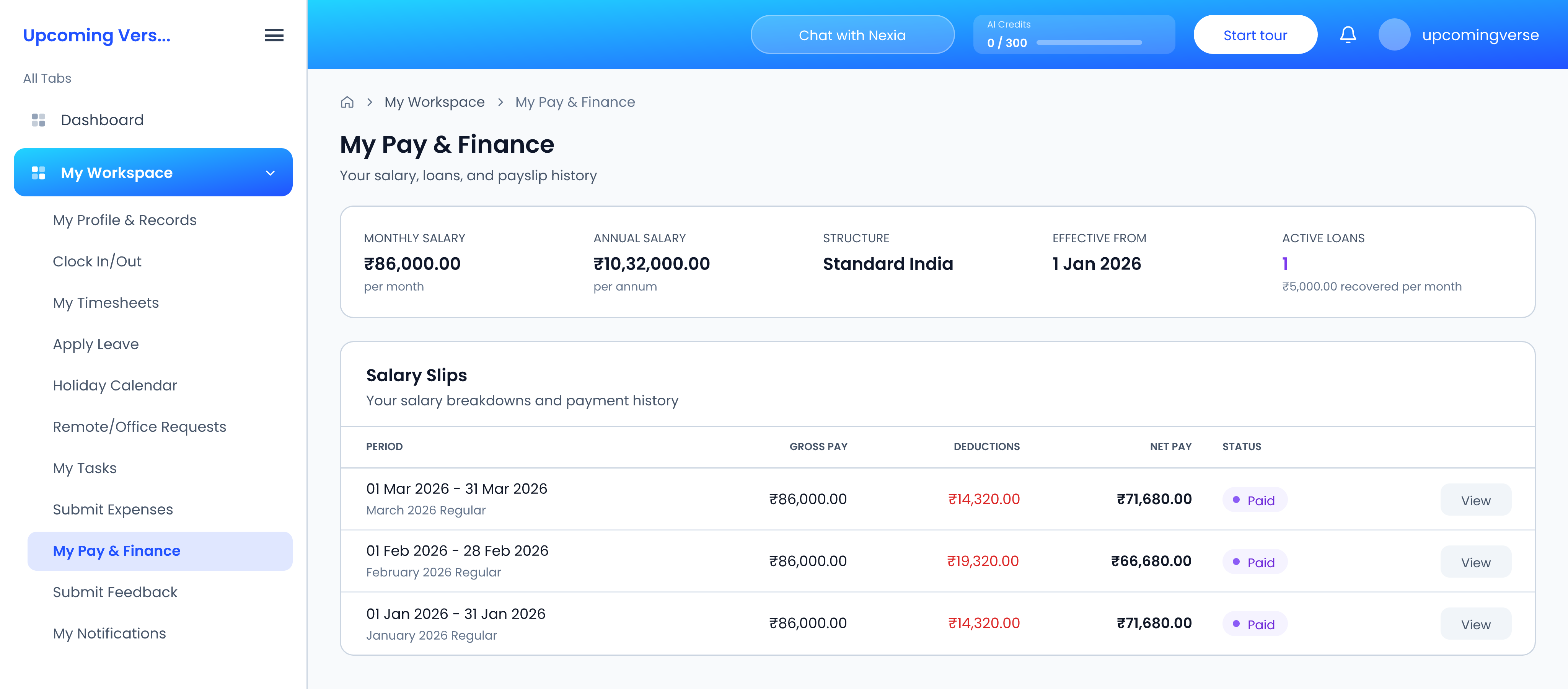
- Open My Workspace and go to My Pay & Finance.
- Find the month you want. View opens a payslip and Hide collapses it again.
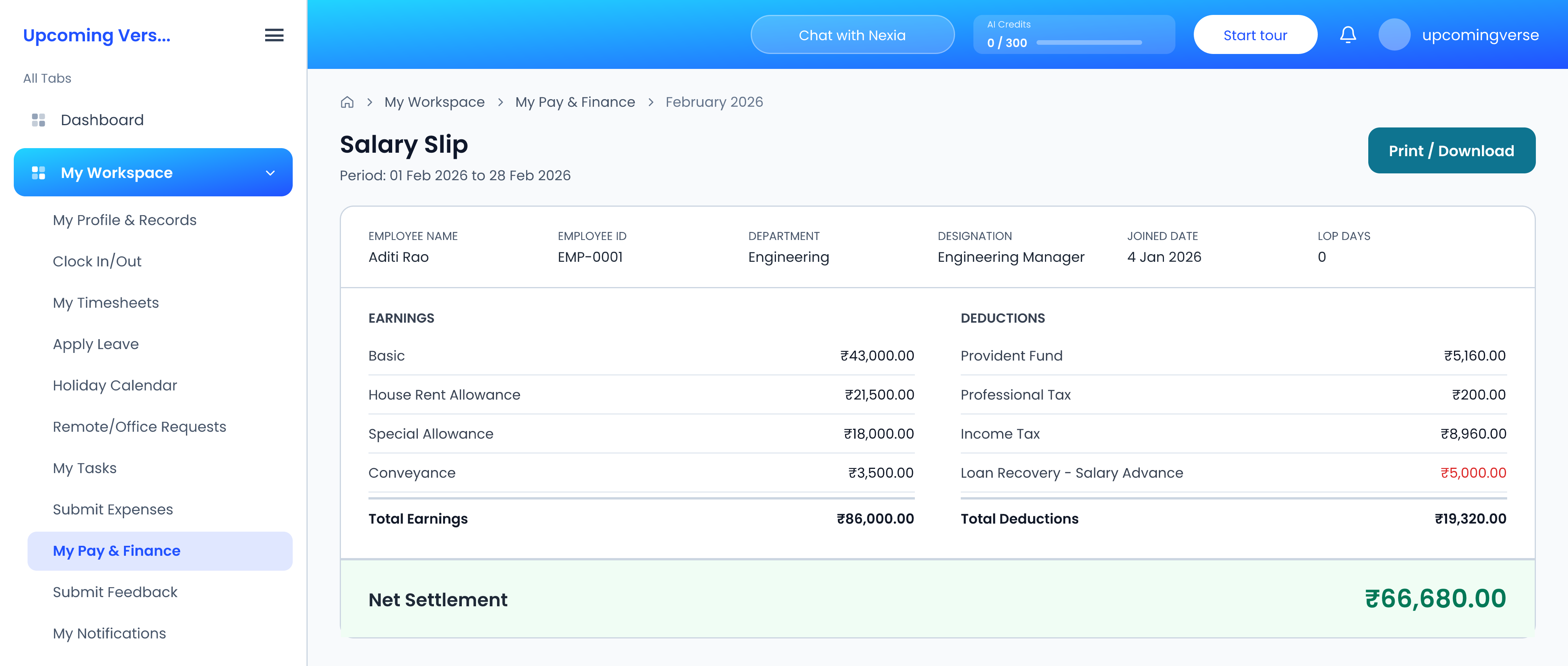
- Open the payslip to see every component listed as an earning or a deduction.
- Use the print or download action on the payslip detail page.
Download opens a print dialog — that is expected
The download action opens your browser's print dialog rather than saving a file directly. To keep a copy, choose Save as PDF as the destination. Nothing has gone wrong if no file appears in your downloads folder; that is simply how the page works.
If a month is missing
A payslip only appears once the payroll run covering that month has been marked as Paid. A missing month almost always means that run is not finished yet, rather than a problem with your record.
If your net pay is lower than you expected
Check My Pay & Finance for a loan with an installment showing as Deducted for that period. A loan recovery line on the payslip is the usual explanation for a smaller net figure.
Taggedpayslippaydownloadpdfsalary