Hiring
How to send an offer and hire a candidate
Updated September 17, 2026
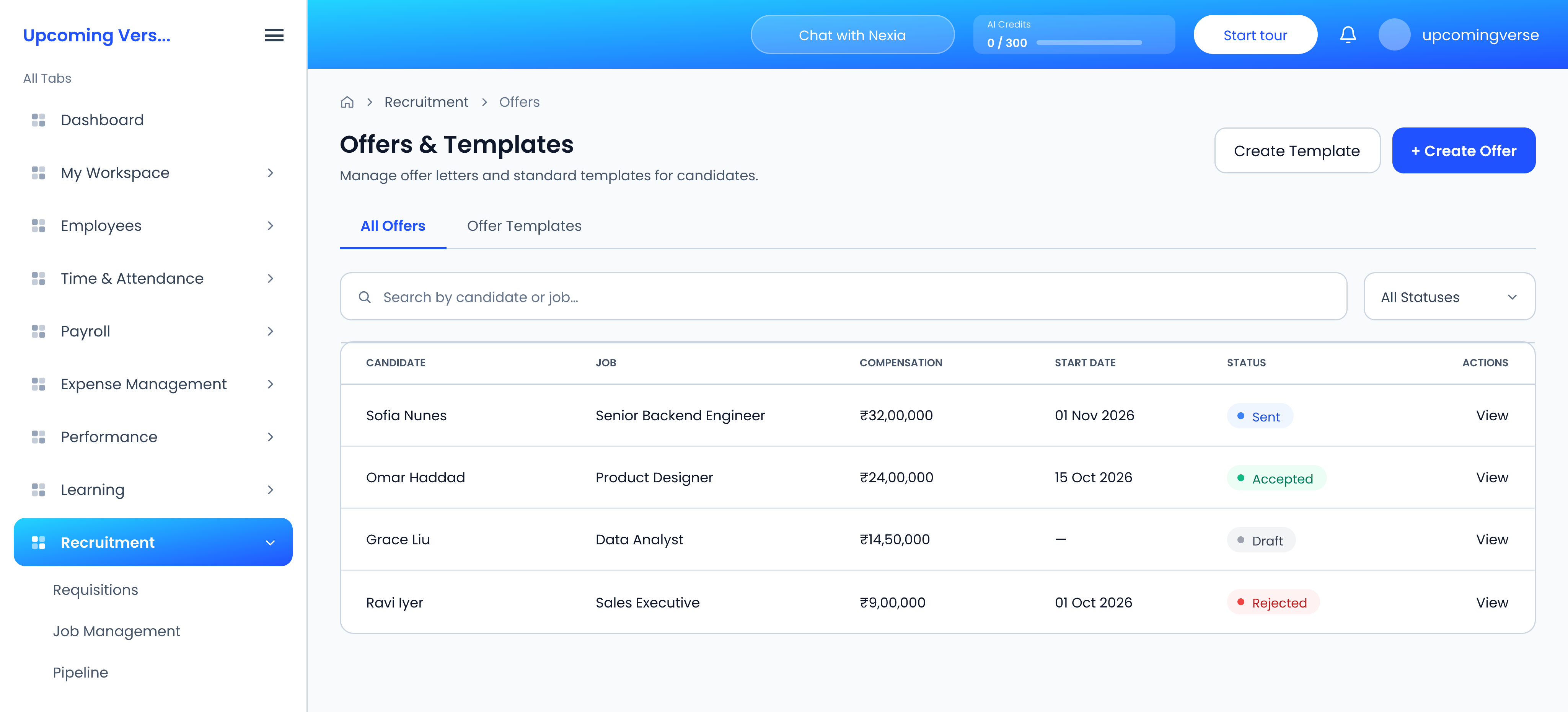
Offers live under Recruitment → Offers, on a page called Offers & Templates with two tabs: All Offers and Offer Templates.
Set up a template first
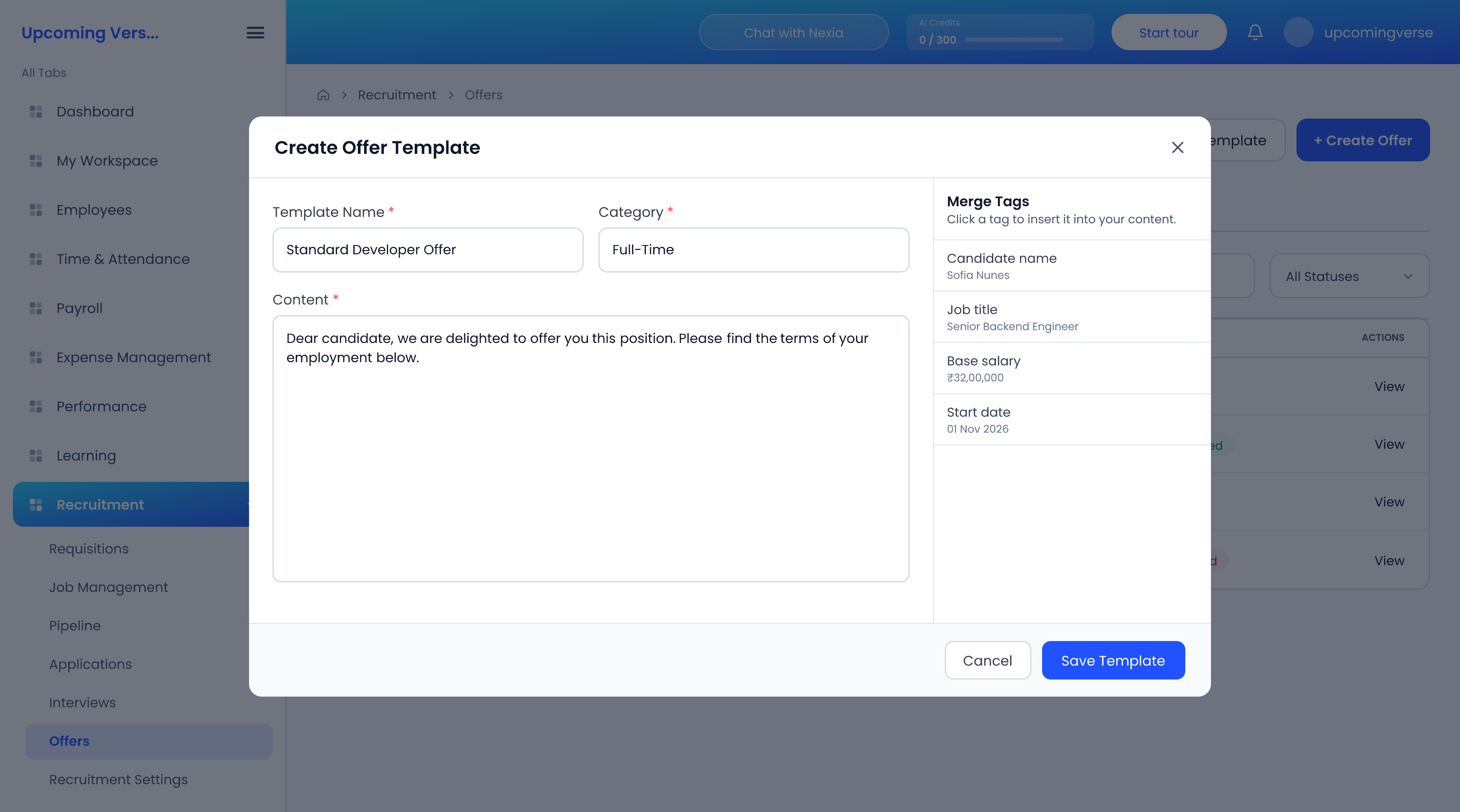
- Open the Offer Templates tab and click Create Template.
- Name it — "Standard Developer Offer", for instance.
- Write the letter. Click a merge tag from the list alongside to insert details that change per candidate, such as their name or salary.
Templates come in five categories: Full-Time, Contractor, Executive, Intern and Custom. If you cannot create an offer, check that a template exists for the category you need.
Send the offer
- Click Create Offer.
- Choose the candidate and the template, and fill in the terms. It starts as Draft.
- Review it, then send it. It moves to Sent.
- The offer ends as Accepted or Rejected.
The All Offers table lists each offer's candidate, job, compensation, start date and status. Search by candidate or job, or filter by status.
Hire them
- Move the candidate to Hired on the Pipeline board.
- Open their application and convert them into an employee.
After conversion
Finish the new record as you would for anyone else: set a department and manager so they appear on the org chart, and assign a salary structure so they are included in the next payroll run.
Taggedoffer letterofferstemplateshiredrecruitmentonboarding