Hiring
How to post a job and review applicants
Updated September 17, 2026
Hiring runs in a fixed order, and each step unlocks the next.
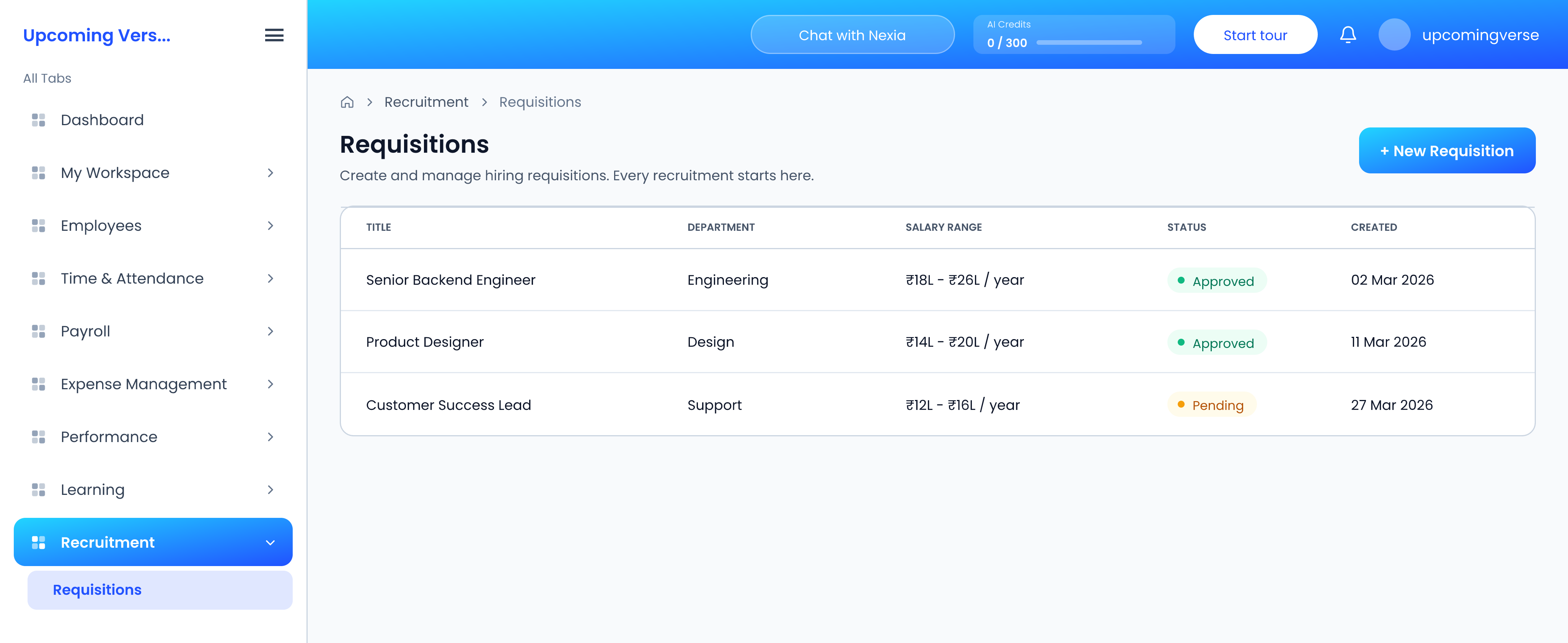
- Raise a Requisition for the headcount and get it approved.
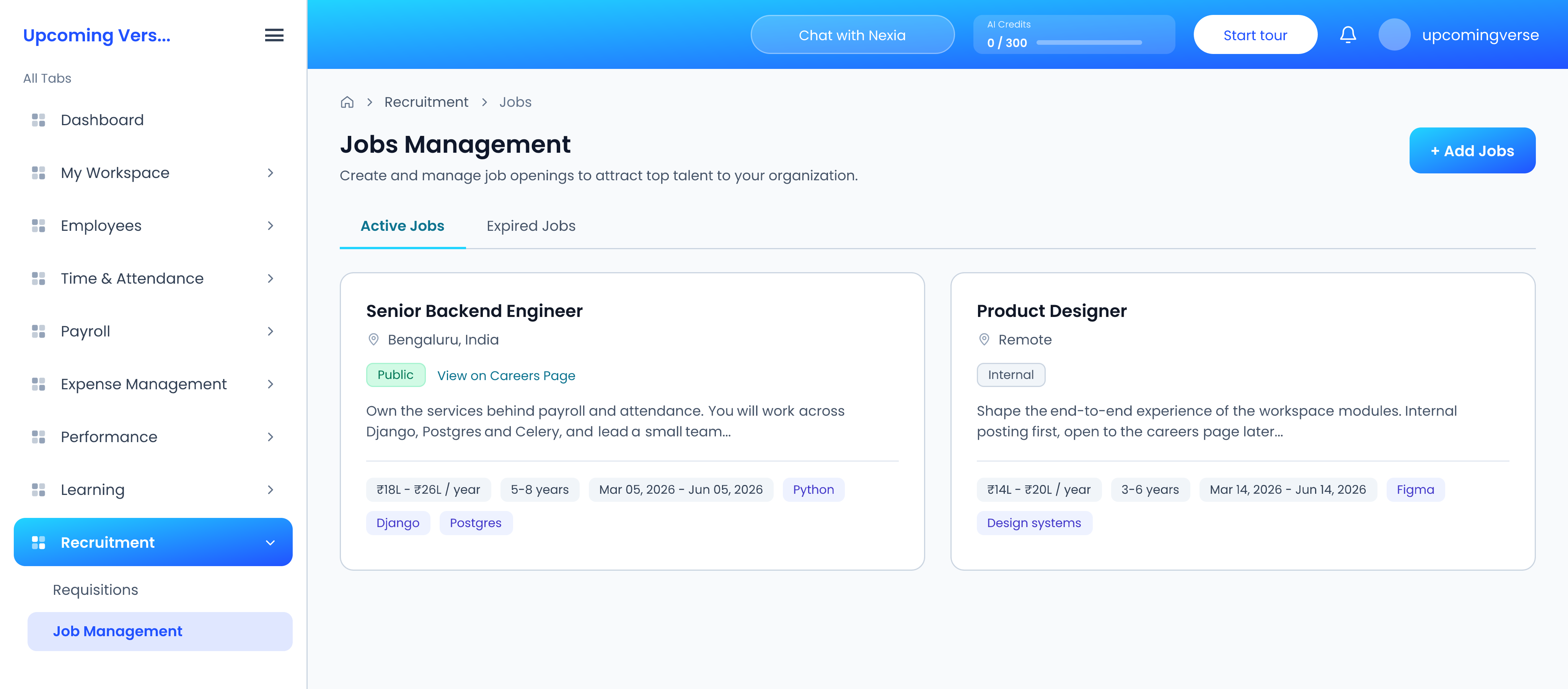
- Create the job under Job Management once the requisition is approved. A job is either Internal or Public.
- Candidates apply. Applications arrive from your Careers Page, an Embed, a Direct Link, a Referral, or are added Manually.
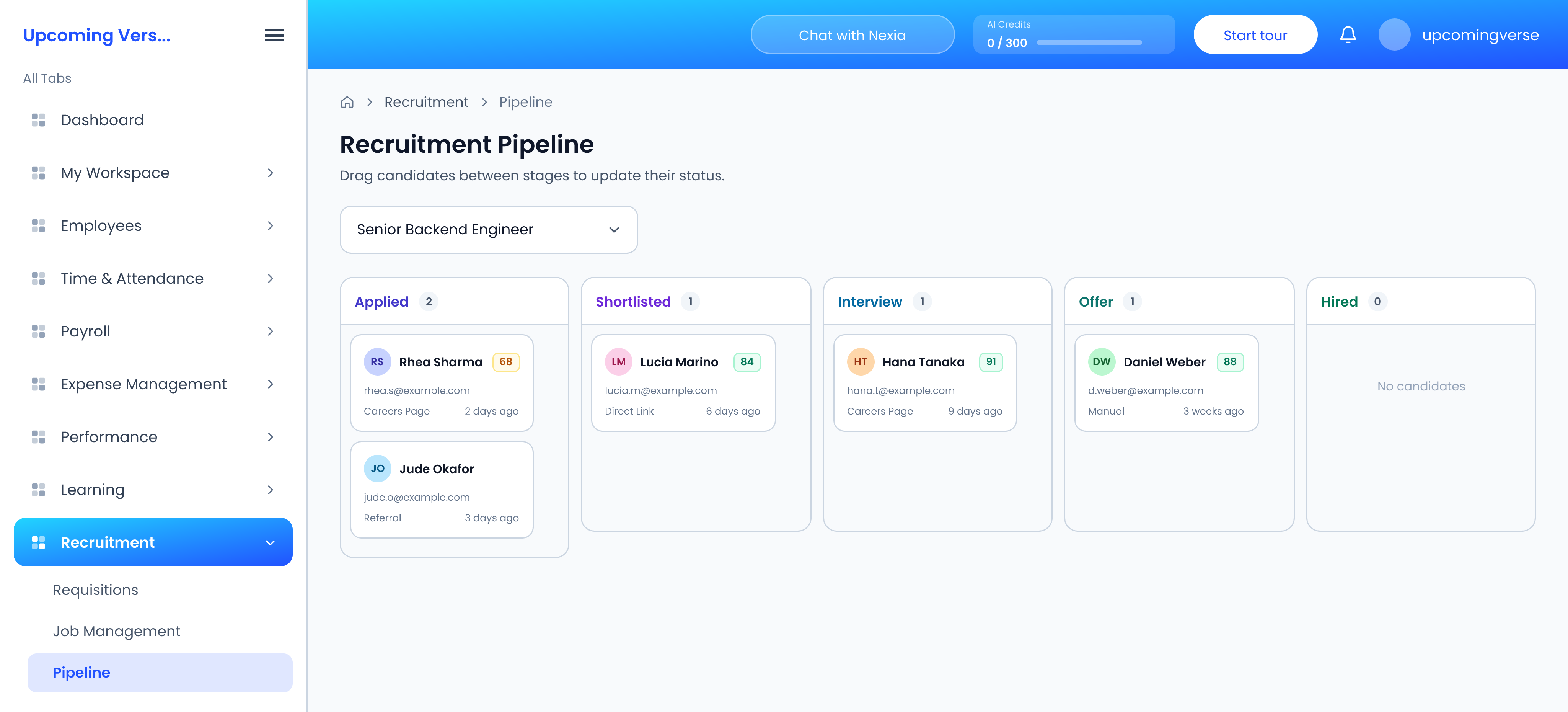
- Move candidates along the Pipeline board.
- Schedule rounds under Interviews.
- Send the offer from Offers.
- Convert the hired candidate into an employee from their application.
The board and the record are the same thing
Moving a card on the Pipeline board is what changes the application's status — there is no second place to update. Statuses are Applied, Shortlisted, Interview, Offer, Hired, Rejected, Cancelled, Rescheduled and Other.
Calendar invitations
Interview rounds sync to Google Calendar when your organization has that connection set up. Without it the round still exists here, but no calendar invitation is created — worth knowing before you assume the candidate has been notified.
Taggedrecruitmenthiringjobscandidatesinterviewsoffers