How to run interviews and record scorecards
Updated September 17, 2026
Schedule a round
- Open Recruitment → Interviews.
- Before booking, check availability for the window you have in mind. Anyone already busy then is listed back to you.
- Schedule the round with its interviewers, date, time and platform — In Person, Google Meet, Zoom, Microsoft Teams, Zoho or a custom link.
Google Calendar
Both the availability check and calendar invitations use Google Calendar, and need your organization to have it connected. Without the connection the round still exists, but no invitation goes out and the availability check has nothing to read — so let the candidate and interviewers know yourself.
After the interview: the order matters
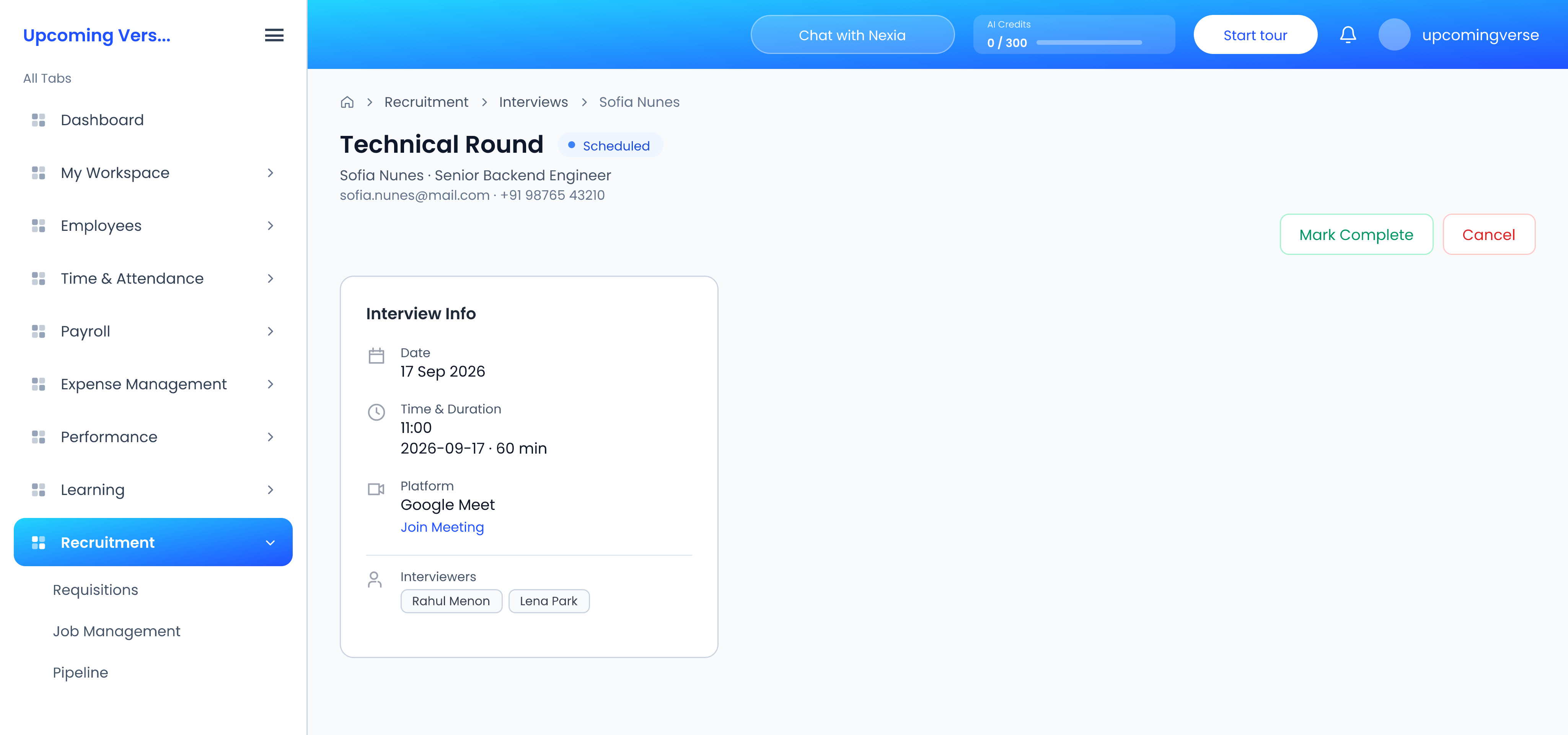
Open the interview. The buttons at the top change as the round moves on:
- While it is Scheduled, click Mark Complete (or Cancel).
- Once it is completed, each interviewer clicks Submit Feedback to fill in their scorecard.
- Then click Mark as Passed or Mark as Failed.
If you cannot find Submit Feedback or the pass and fail buttons, the round has not been marked complete yet.
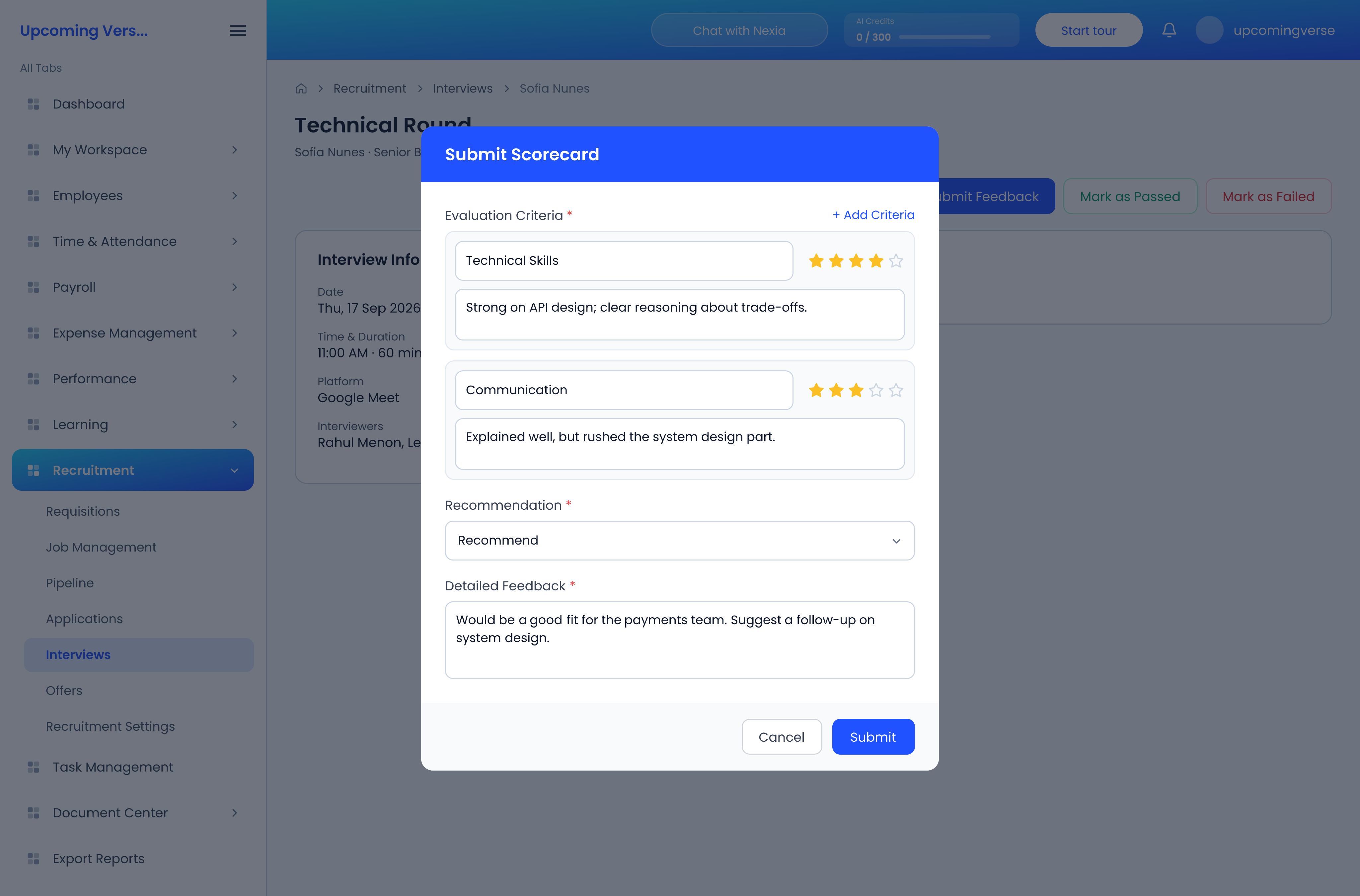
Fill in a scorecard
- Evaluation Criteria — use Add Criteria for each thing you assessed, such as Technical Skills. Rate each one from 1 to 5 stars and note what you saw.
- Recommendation — Strongly Recommend, Recommend, Hold, Not Recommended or Strongly Not Recommended.
- Detailed Feedback — your overall view of the candidate's performance.
Click Submit. Submitted scorecards appear under Interviewer Feedback on the same page.
An interviewer has one scorecard per round. To change your mind, edit the one you already submitted — a second one for the same round is refused.
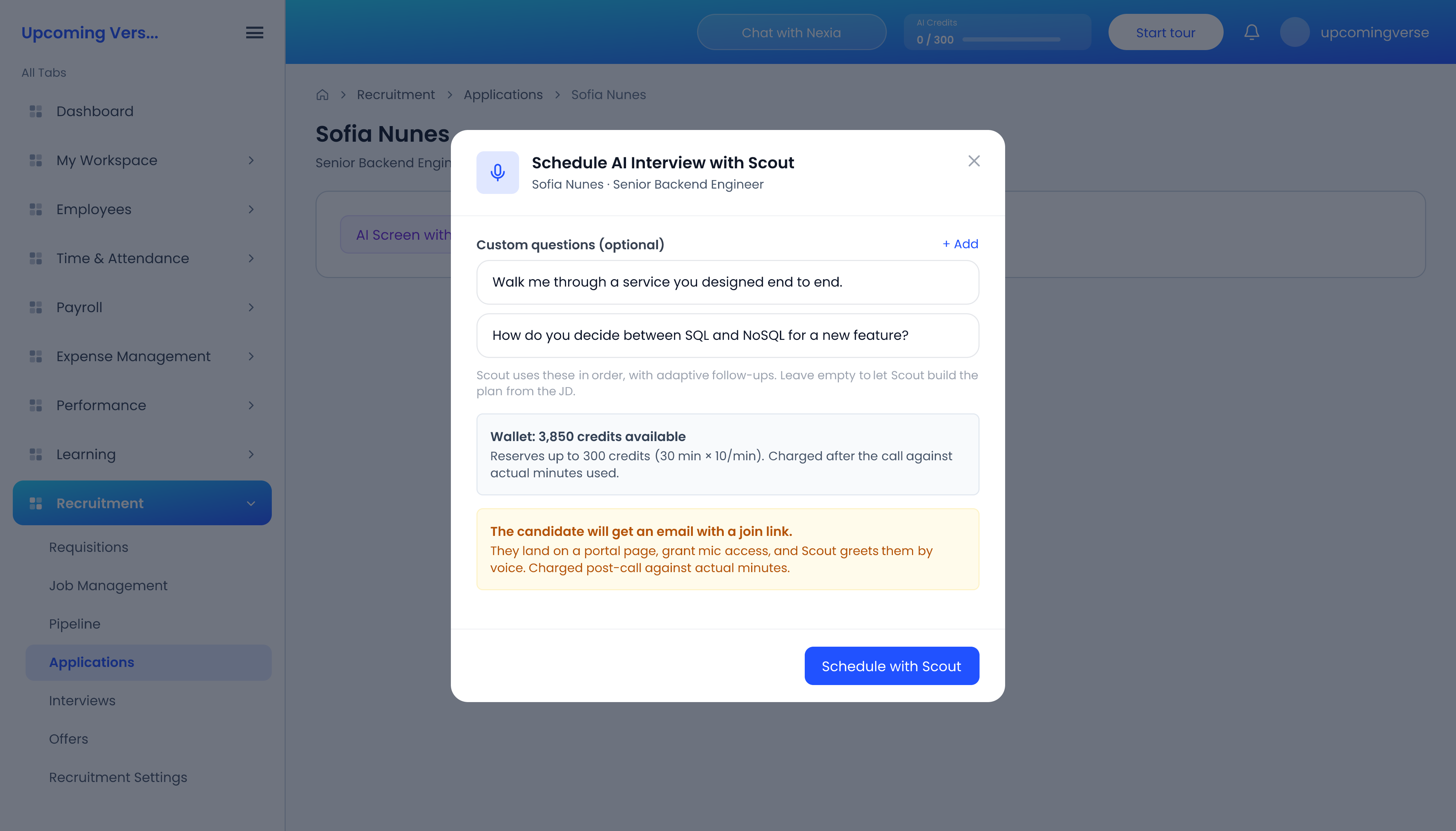
Let Scout run a first-round AI interview
Instead of booking a person, you can have Scout, the AI interview assistant, run a voice screening. It has to be switched on first under Recruitment Settings → Enable Scout AI Interviews.
- Open the candidate's application. Once they are Shortlisted, it offers AI Screen with Scout.
- Optionally add Custom questions. Scout asks them in order, with follow-ups; leave them empty and Scout builds its questions from the job description.
- Check the wallet line. Scout reserves AI credits for the longest possible call and charges only for the minutes actually used. If the wallet is too low, top up the AI credits first.
- Click Schedule with Scout.
The candidate is emailed a join link, which stays valid for a set number of hours. The dialog also shows a direct join link you can copy and send yourself. On the interview's page, the platform shows as In Platform, the interviewer as Scout, and, where your organization records AI interviews, the recording appears once the session is finished.
Moving on
Move the candidate on the Pipeline board to reflect the outcome, and send an offer from Offers when you are ready.