How to use two-factor authentication
Updated September 17, 2026
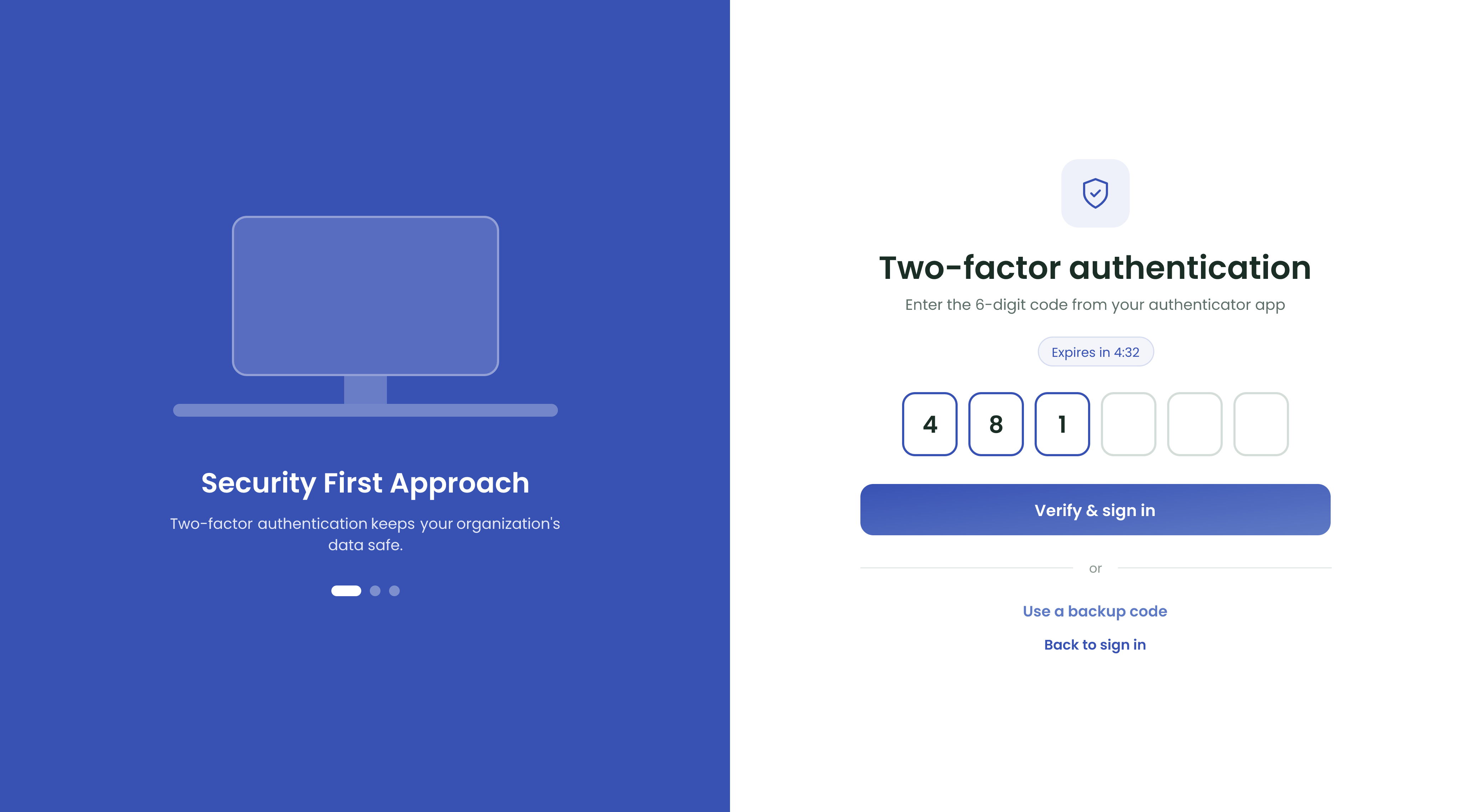
Your organization can require a code from an authenticator app on top of your password. When it does, a Two-factor authentication screen appears after you sign in.
- Open your authenticator app.
- Type the 6-digit code into the boxes. It submits on its own once all six are filled.
- If it does not, click Verify & sign in.
The screen has a time limit
A badge above the code shows how long the screen stays valid. If it runs out and says Session expired, go Back to sign in and start again with your password.
Setting it up for the first time
If you see "Your organization requires MFA. Please set up MFA to continue.", two-factor is mandatory for your organization and your account does not have it yet. Follow the prompts to add the account to your authenticator app — you cannot carry on until it is done.
Keep your backup codes
Setting up two-factor gives you backup codes. Store them somewhere other than your phone. They are how you get in if the phone is lost or replaced.
Every code is rejected
Codes are based on the time, so a phone whose clock is wrong produces codes that never work. Set your phone's date and time to update automatically, then try a fresh code.
You have lost your phone
- Sign in with your password as usual.
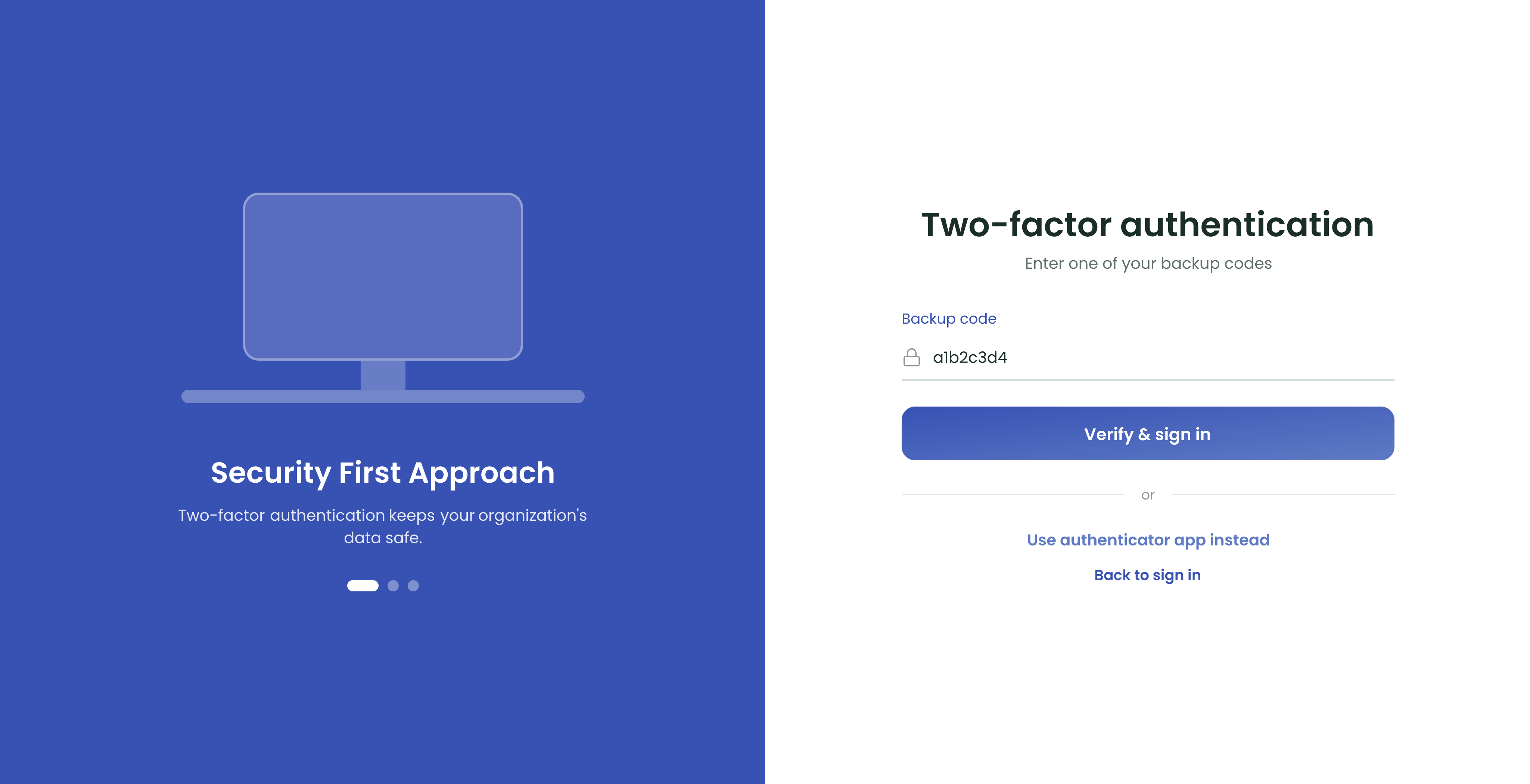
- On the code screen, choose Use a backup code and enter one of your saved codes.
- If the backup codes are gone too, an administrator has to turn two-factor off for your account before you can get back in.
For administrators
Two-factor is enforced for everyone from Organization Settings, under Security Settings → Require Multi-Factor Authentication (MFA).