How to reset your password
Updated September 17, 2026
- On the sign-in screen, choose Forgot password?, next to Remember me.
- Enter the email address your account is on.
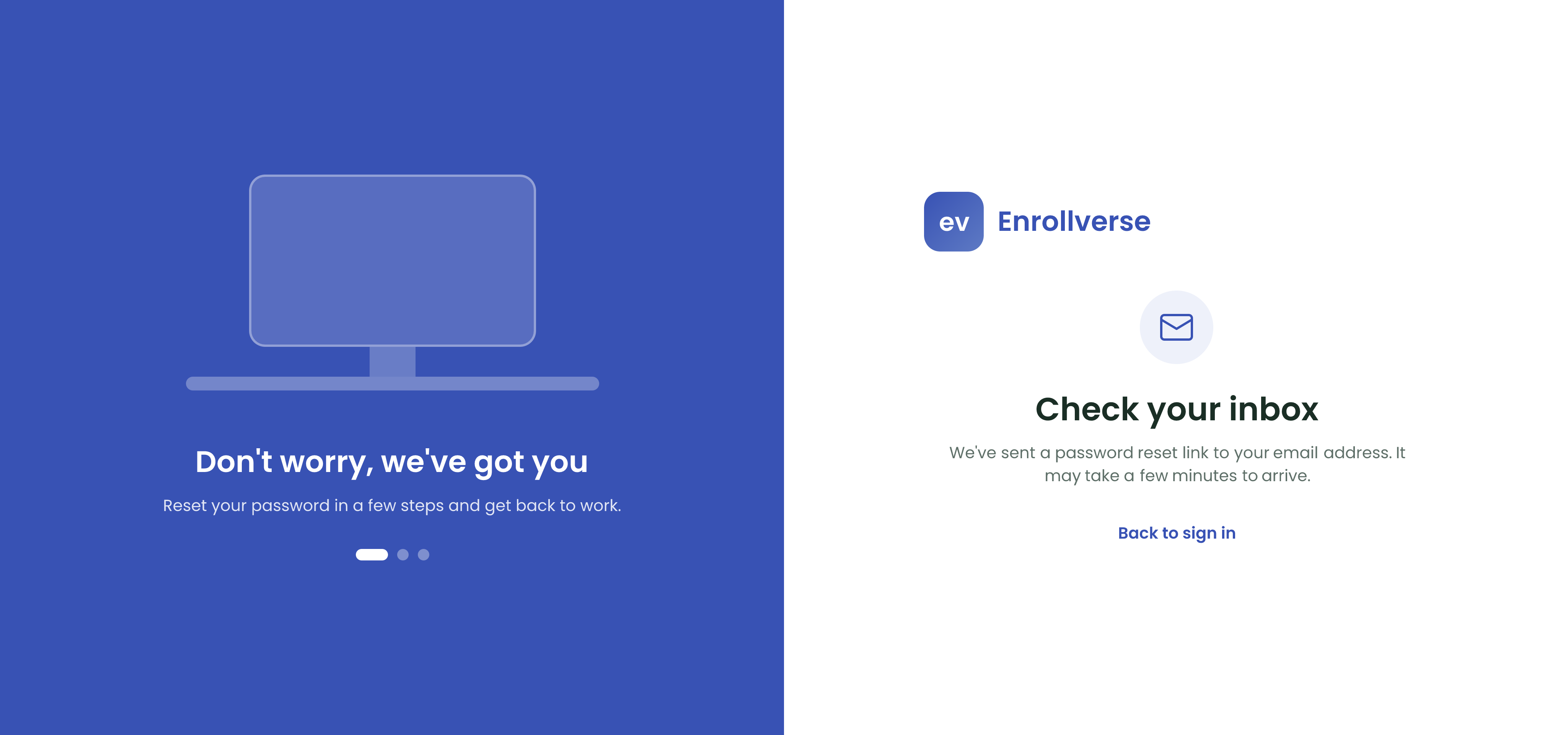
- Click Send reset link. The screen changes to Check your inbox.
- Open the link in that email and choose a new password.
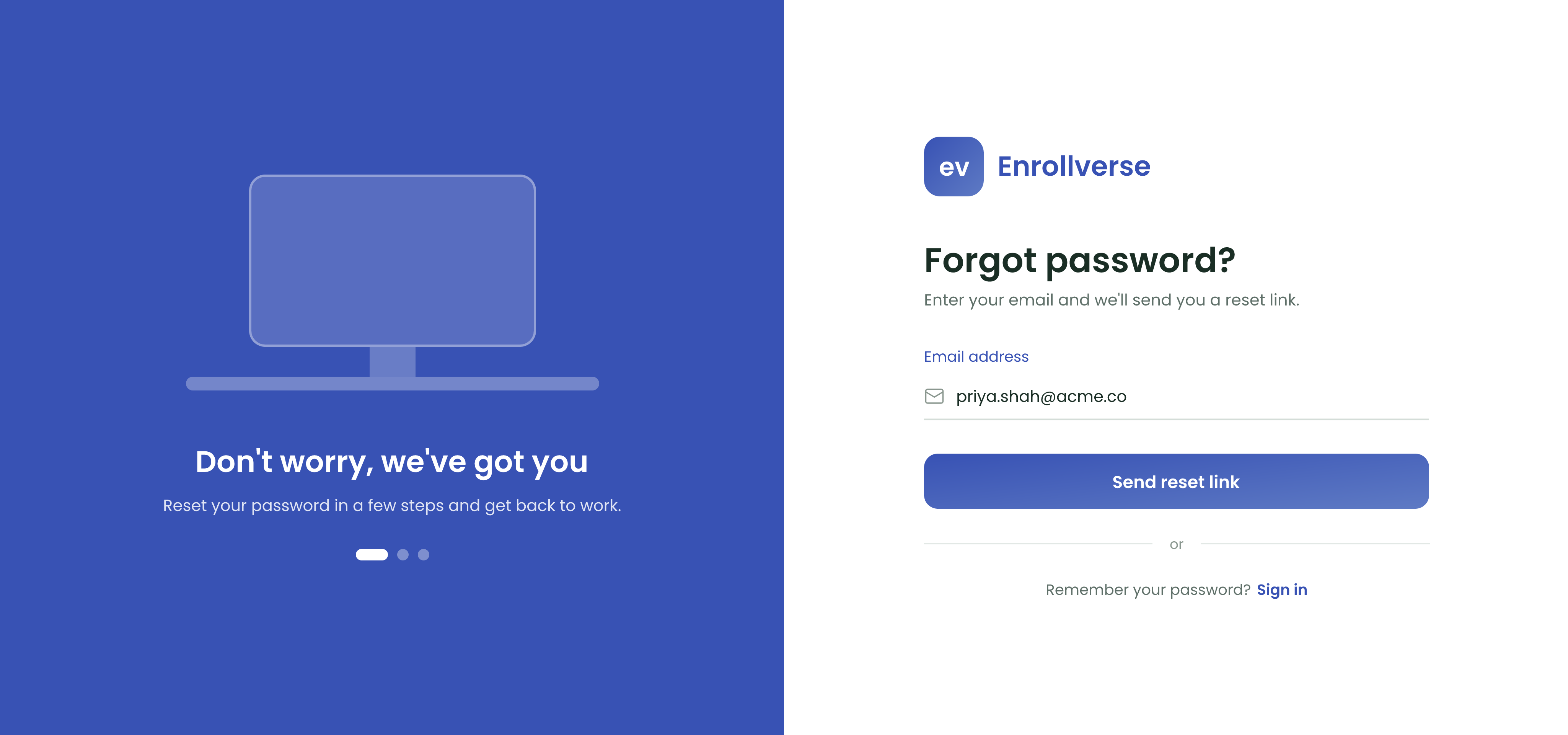
The email can take a few minutes to arrive.
"User with this email does not exist."
There is no account on that address. Usually you are trying a personal address when your account is on a work one, or the invitation was sent somewhere else. An administrator can tell you which address your account is on.
The email has not arrived
Check your spam folder first. If you were never sent an invitation in the first place, there is no password to reset yet — ask an administrator to send the invitation again, and set your password from that link.
After resetting, sign-in still fails
Check the Organization Code on the sign-in screen. A wrong code gives the same "Invalid credentials" message as a wrong password, so a reset alone will not fix it.
You know your password and just want a new one
You do not need the reset flow. Change it from your own profile while you are signed in.