How to enroll employees in a training course
Updated September 17, 2026
Enroll people yourself
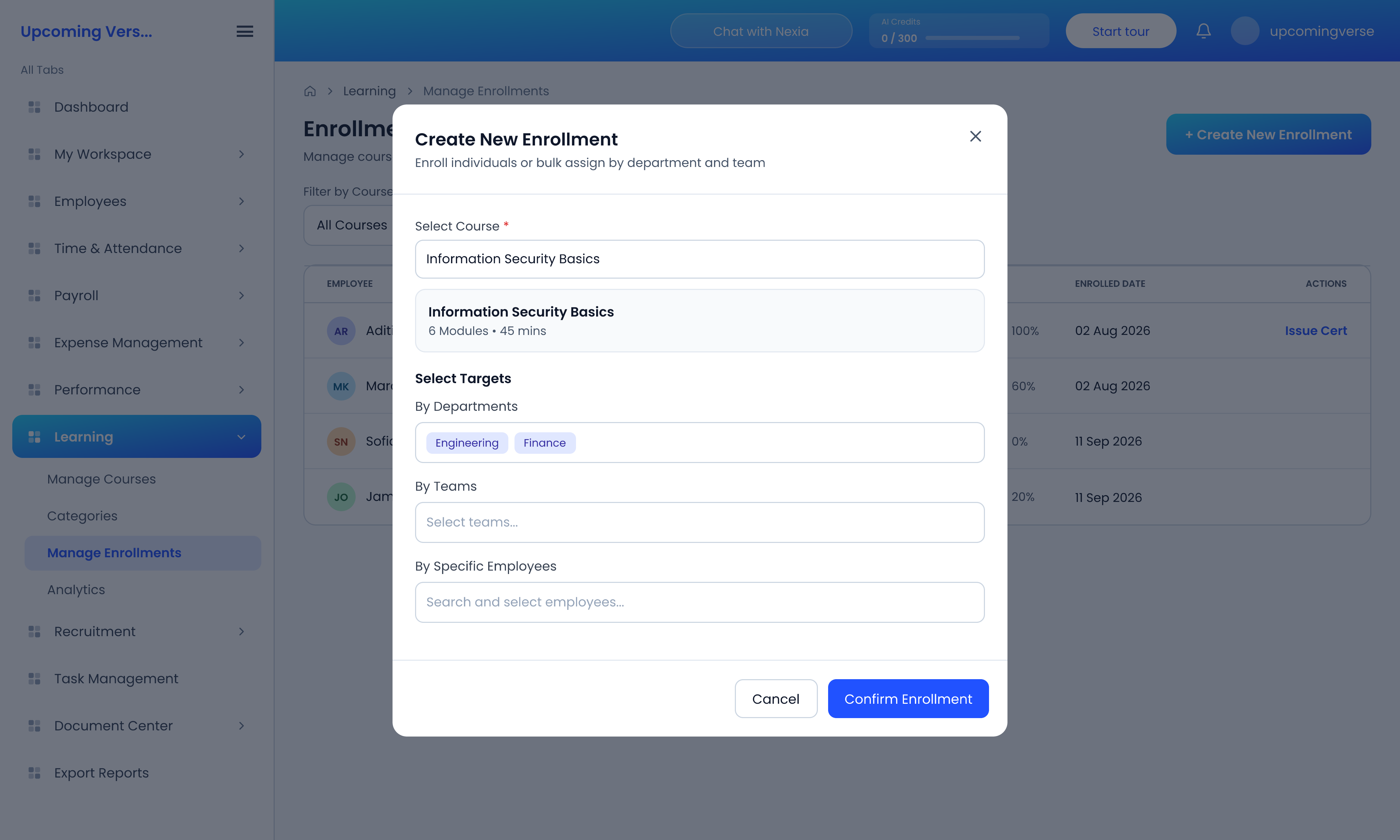
- Open Learning → Manage Enrollments.
- Click Create New Enrollment and choose the course.
- Under Select Targets, pick who to enroll — By Departments, By Teams or By Specific Employees. You can combine them.
- Save. The course appears for each person under My Workspace → My Learnings.
Enrolling a department or team is the quick way to assign mandatory training to a whole group at once.
Track progress
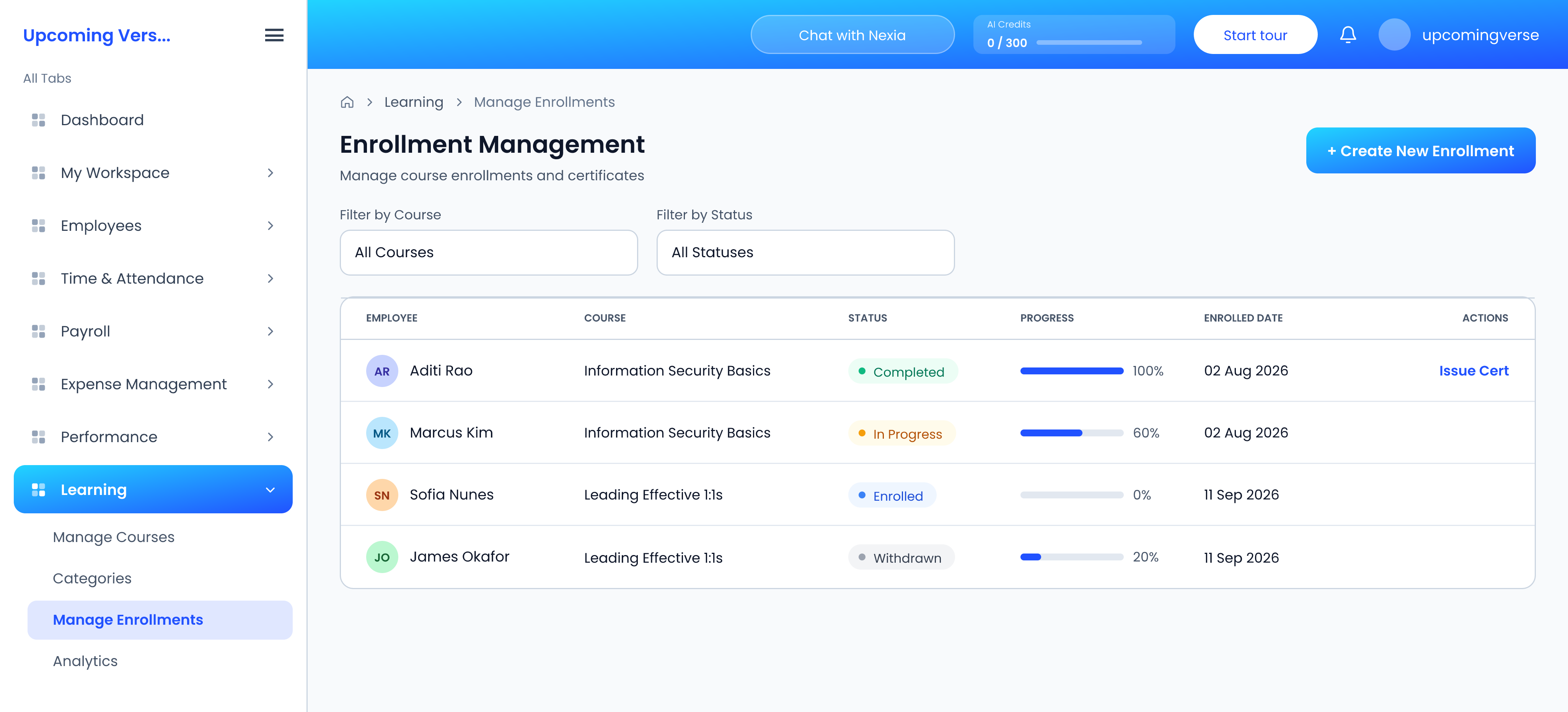
Enrollment Management lists every enrollment with the employee, course, status, progress and enrolled date. Filter by course, or by status: Enrolled, In Progress, Completed or Withdrawn. Learning → Analytics reports on progress and engagement across the organization.
Issue a certificate
Once an enrollment is Completed, its row offers Issue Cert. You can upload a personalised PDF (up to 5MB), or leave it empty to issue the standard certificate.
Or let people enroll themselves
Employees browse the Course Catalog tab in My Learnings and enroll from there. Browsing and enrolling are separate permissions, though, so someone can see a course and still not be able to join it — in that case enroll them yourself.
A course is not in the catalogue
Check that the course is published, and that it sits in a category the employee can reach. Courses are organized under Learning → Categories.
No learning entries at all
Learning is a module your organization has to have switched on. Without it, nothing learning-related appears in the sidebar for anyone.