How to buy an add-on and apply a coupon code
Updated September 17, 2026
Add-ons give you extra features without moving to a higher plan.
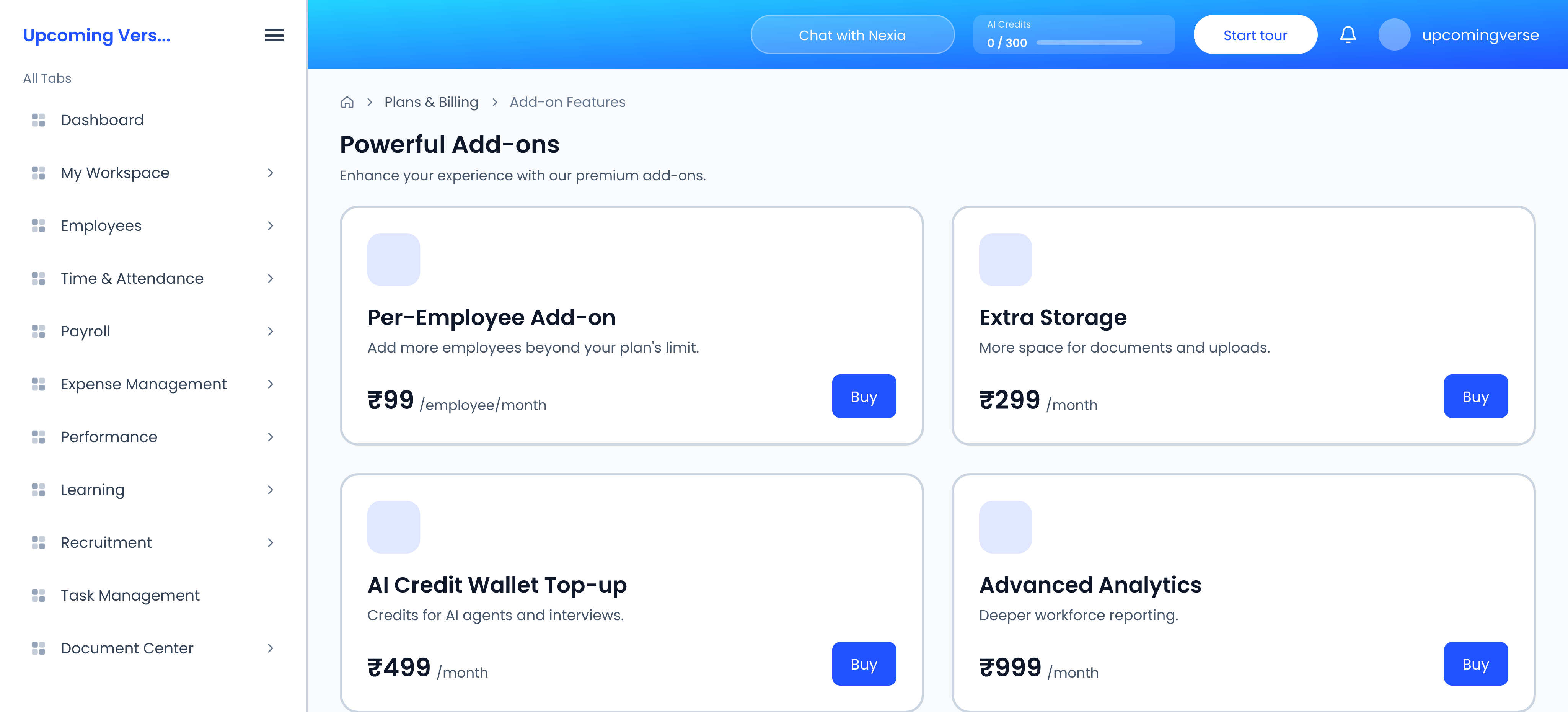
- Open Plans & Billing → Add-on Features.
- Find the add-on and click Buy. If it says Coming Soon, it is not available yet.
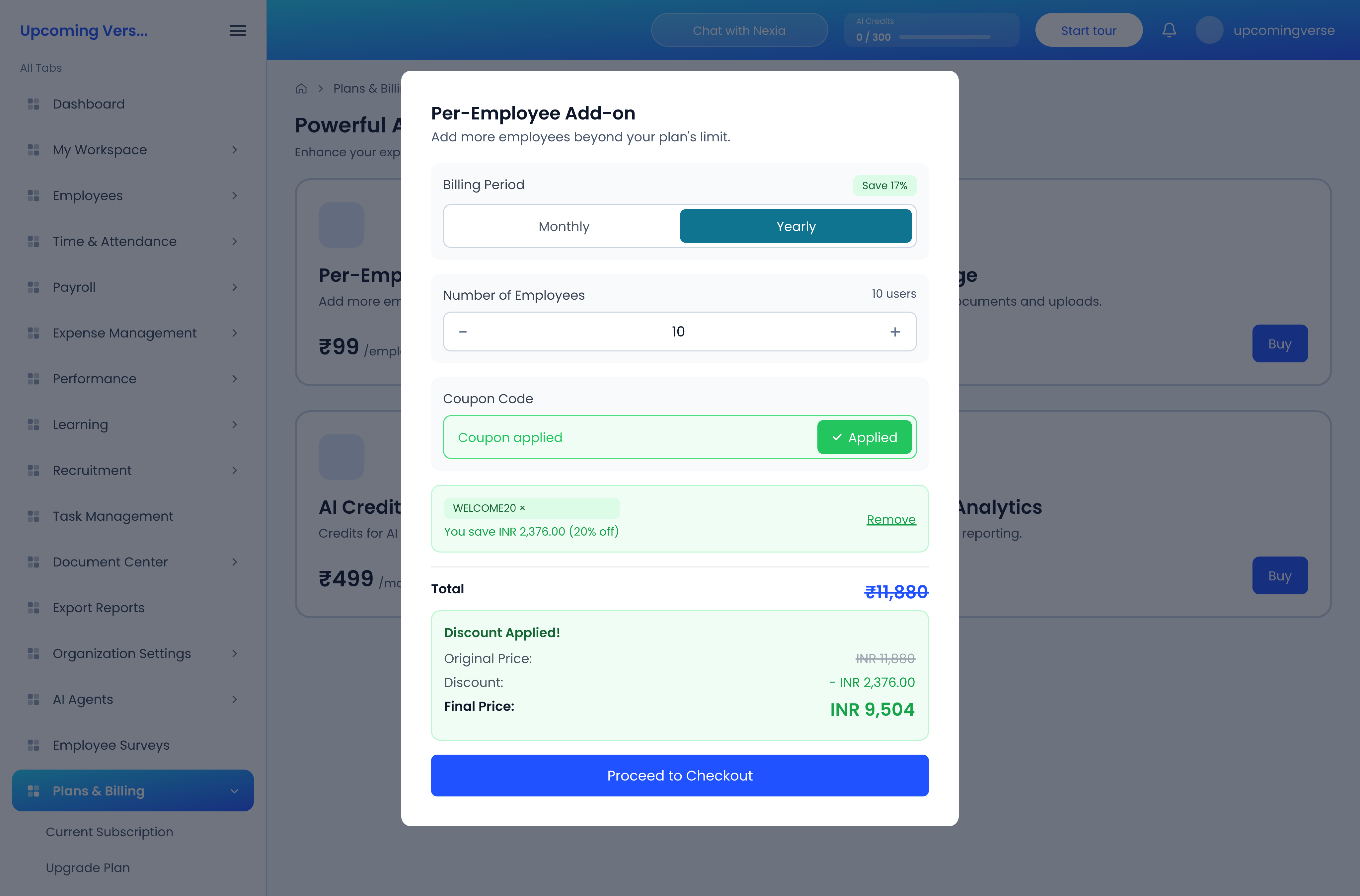
- Choose the Billing Period: Monthly or Yearly. Yearly shows how much you save.
- Set the quantity. The field is labelled Number of Employees for add-ons priced per employee, and Quantity otherwise.
- If you have a coupon, type it into Coupon Code and click Apply.
- Check the Total, then click Proceed to Checkout. Payment is handled by Razorpay.
What a coupon looks like once applied
The button changes to Applied, the code appears as a green tag, and a Discount Applied! panel shows the Original Price, the Discount and the Final Price — all before you pay.
One coupon at a time
Once a code is applied, the field locks. To try a different code, click Remove first. Coupons do not stack.
Check the quantity
Per-employee add-ons are priced per person. Buying for the whole organization when only one team needs it is the usual reason a total looks larger than expected.
Why a code was rejected
- Invalid coupon code — the code does not exist. Check for a typo or a trailing space.
- Coupon is expired or inactive — it has been switched off or is past its end date.
- Not valid for this currency — it was issued for a different currency from the one you are billed in.
- Maximum usage limit reached — it has been redeemed as many times as it allows.
- Organization limit reached — your organization has already used it as often as it allows.
A code issued for a plan will not work on an add-on, and the other way round. There is no page listing available codes — a coupon has to be one you already hold.
Invoices
Billing History lists past charges with downloadable invoices, including what any coupon took off. Set the start and end dates to cover the charge you are looking for.